 lumenfix
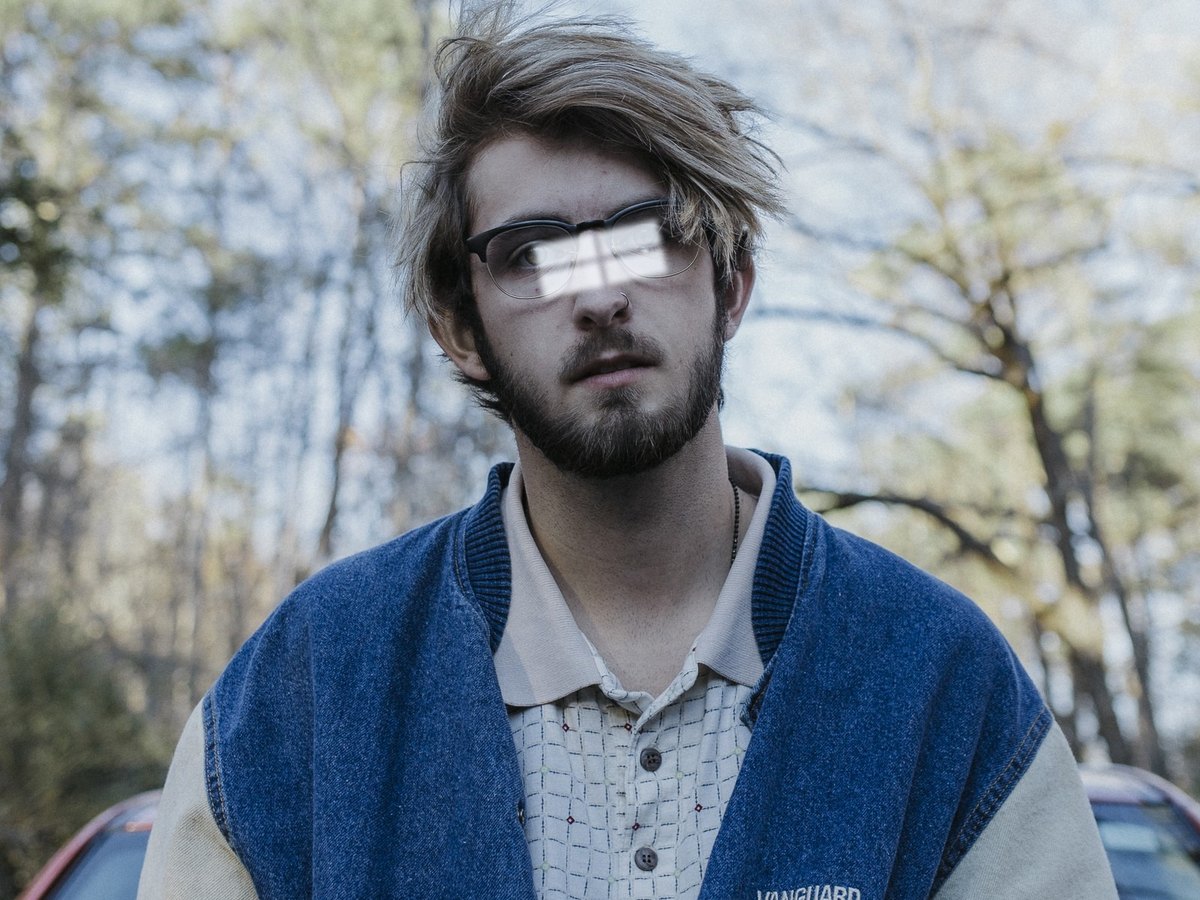
Real result
Glasses with a window reflection
Synthetic window reflection on a clear public-domain portrait, then Standard removal. The person stayed recognizable and the color stayed. Fine detail in the eyes is regenerated.
Free · no account required
Clear glare on glasses, flash hot spots, and sun flare in a photo you already have. Covered areas are filled in, so compare the result before you use it.
Glasses, a screen reflection, a street sign, a bottle label, and an outdoor portrait. The first four start from a clear original with glare we added. The outdoor portrait is real glare, with no clear original. Drag the slider and read what changed.
Synthetic window reflection on a clear public-domain portrait, then Standard removal. The person stayed recognizable and the color stayed. Fine detail in the eyes is regenerated.
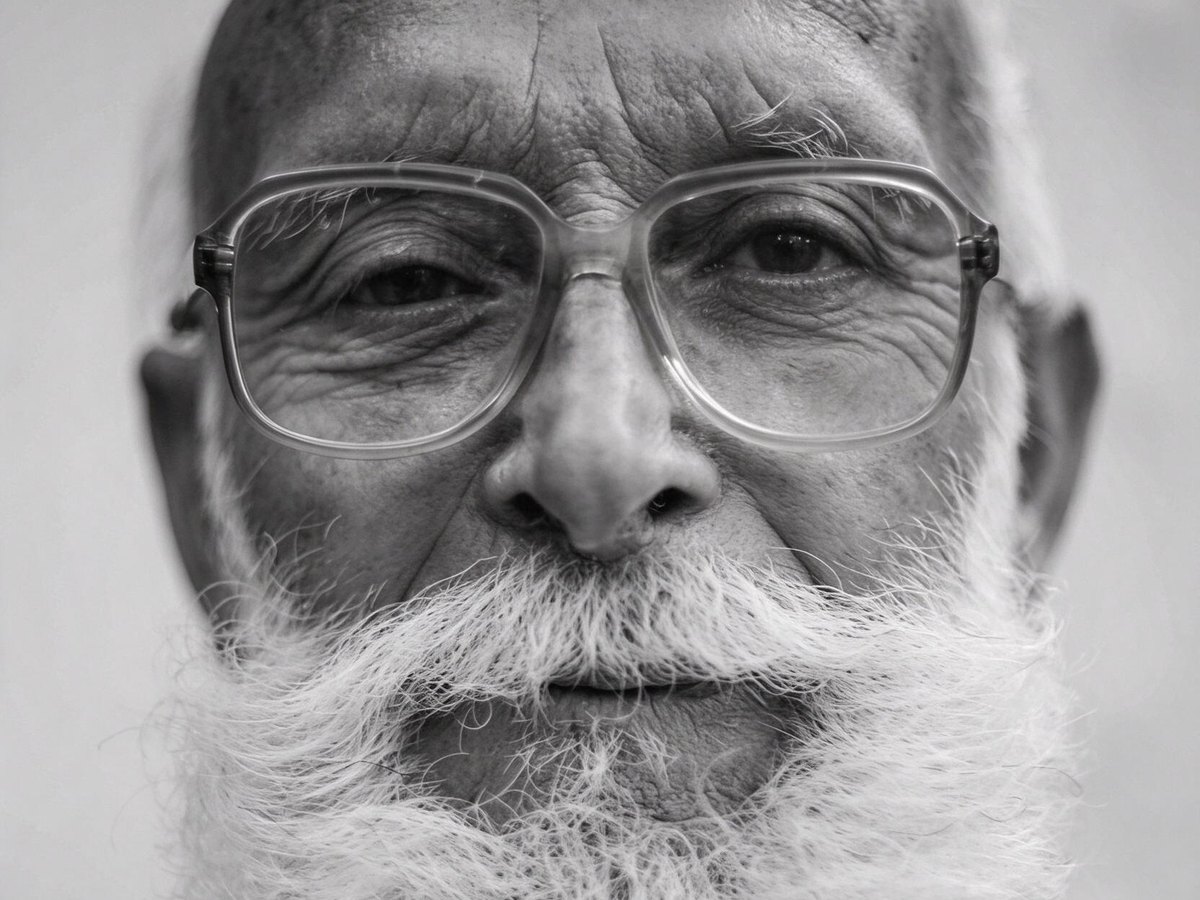
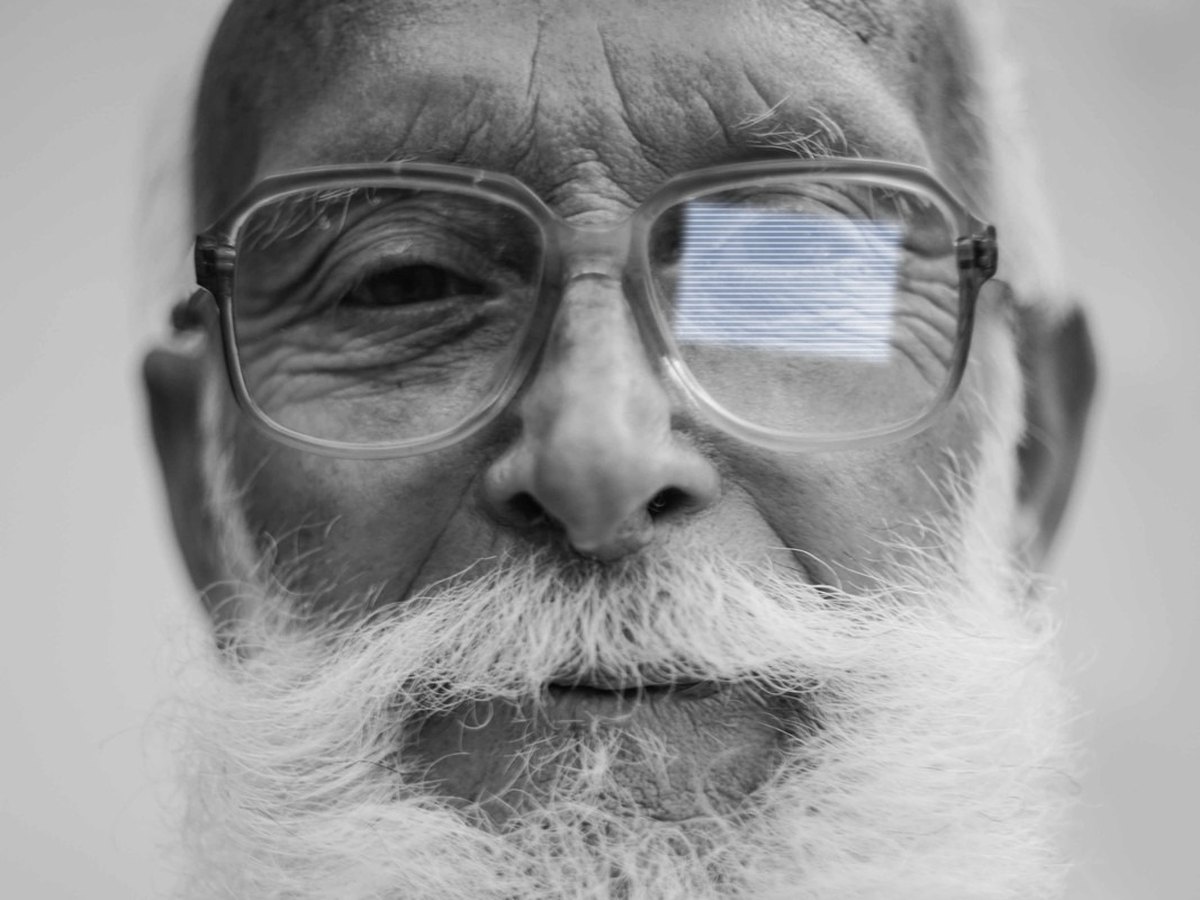
Synthetic blue screen over one eye of a grayscale portrait, then Standard removal. The result stayed grayscale and the screen is gone, but that eye is more open than in the clear original.
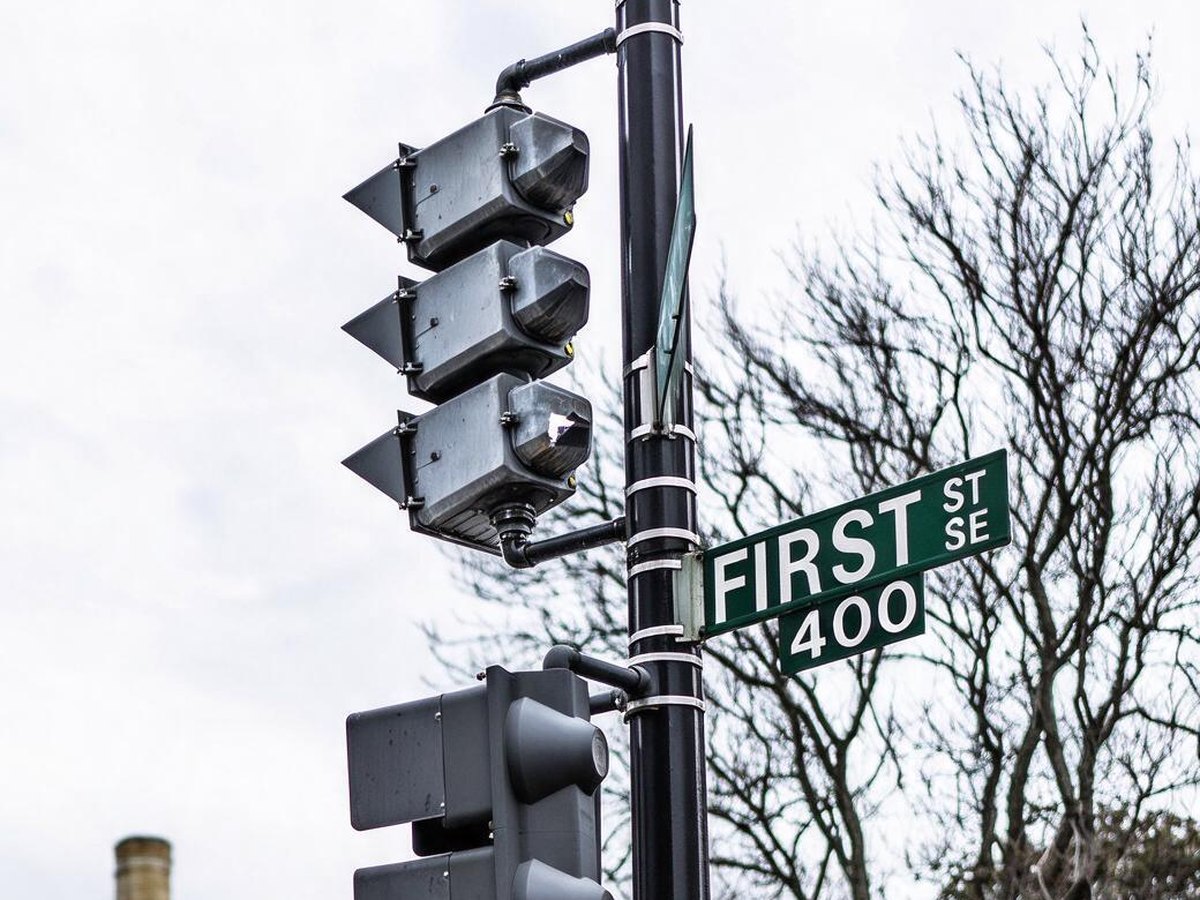
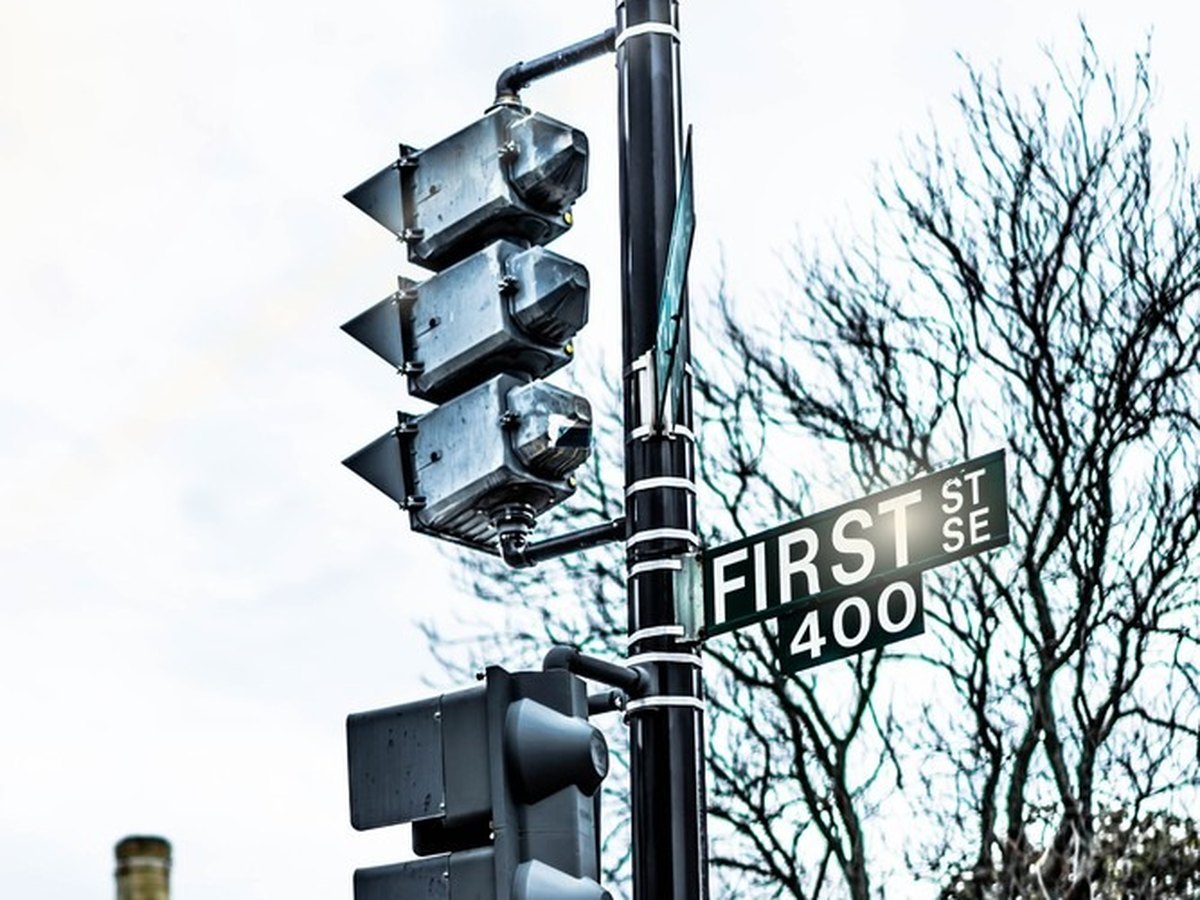
Synthetic flare on the FIRST ST 400 sign of a clear street photo, then Standard removal. The letters and 400 stayed. A faint sun disk in the white sky was already weak.
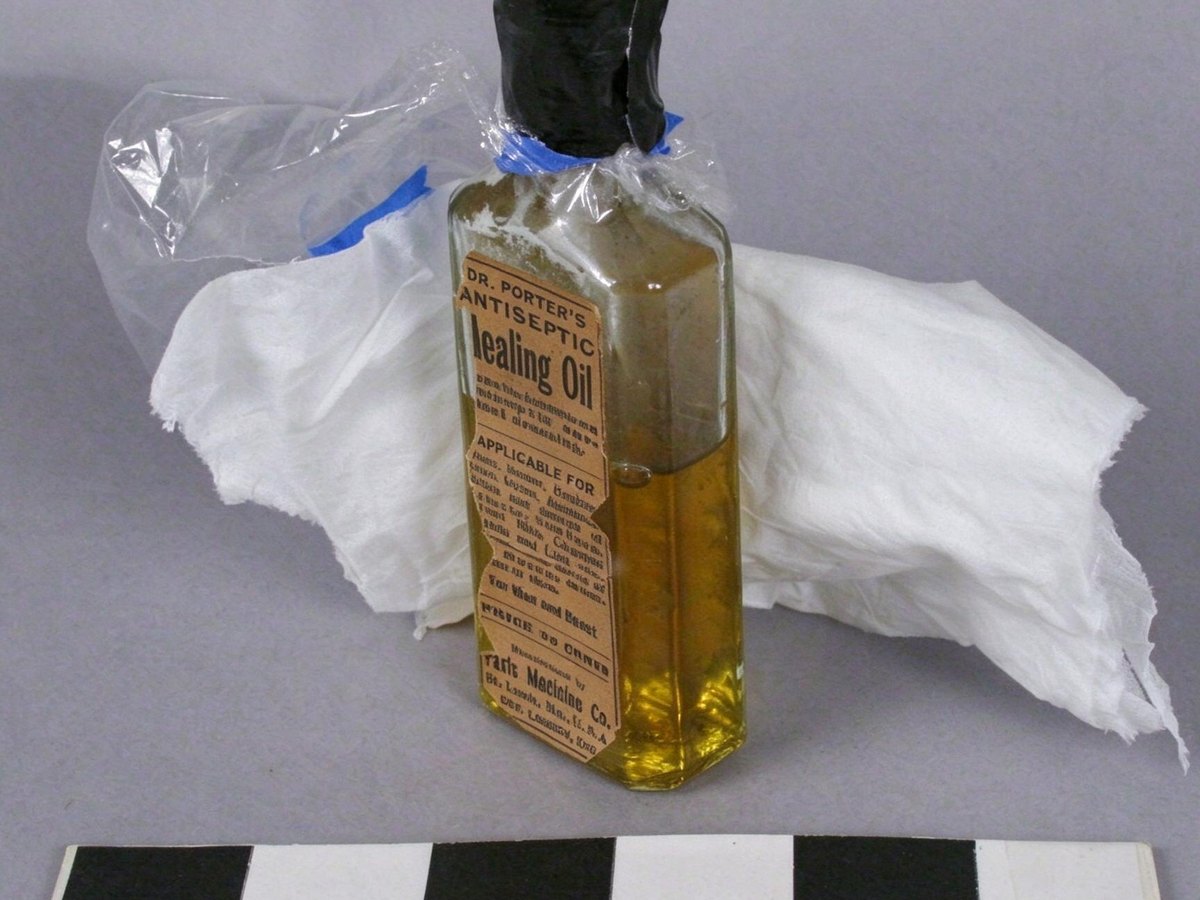
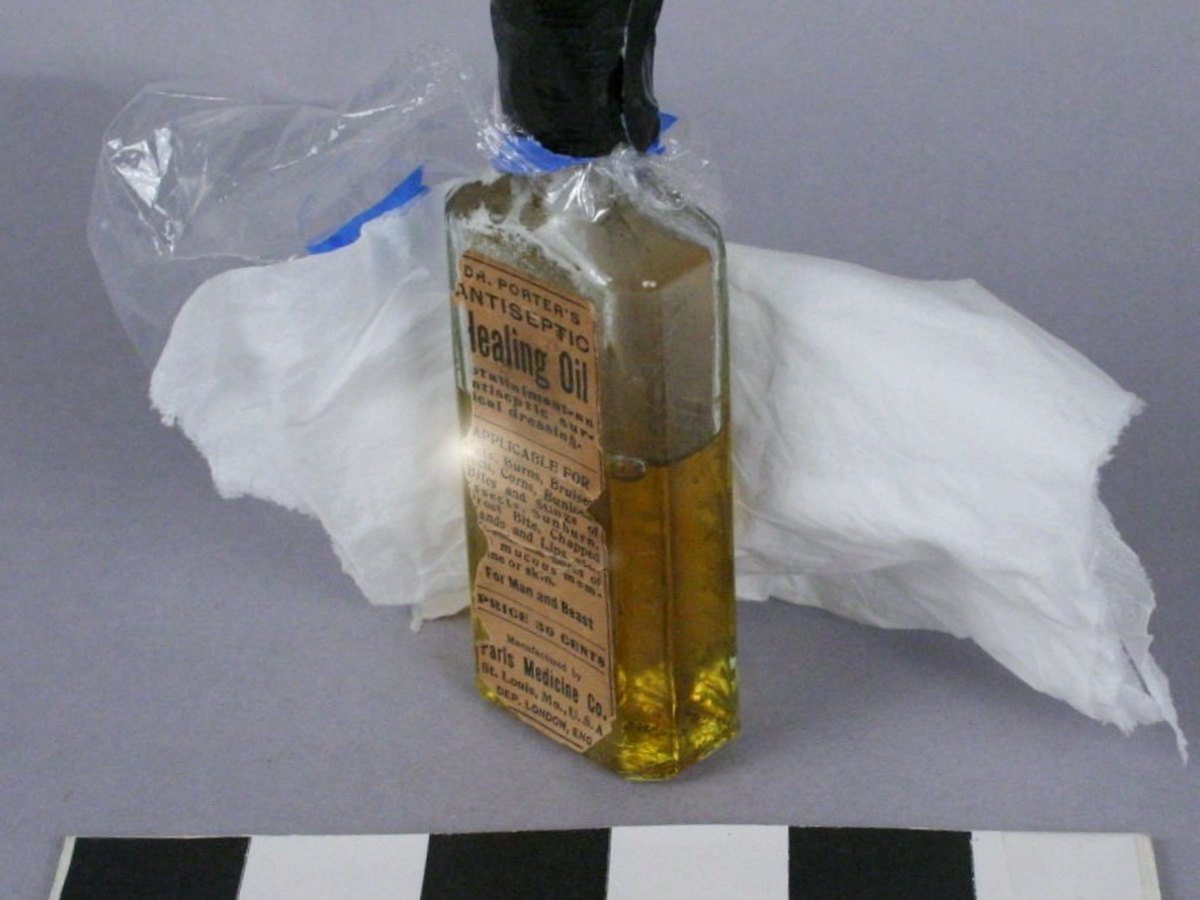
Synthetic flash on a clear photo of a medicine bottle, then Standard removal. The hot spot is gone, but the title changed from Healing Oil to Lealing Oil. Do not treat the label as restored.
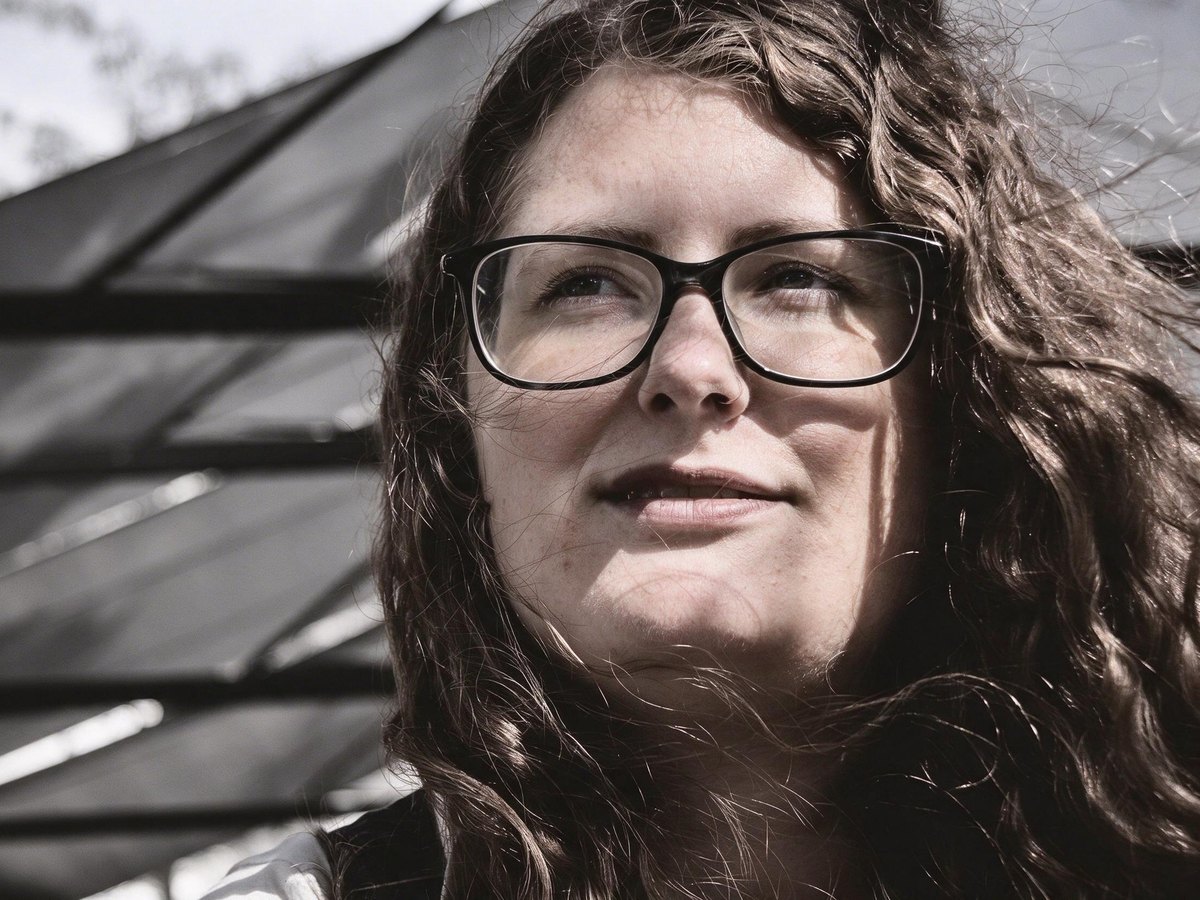

A real outdoor portrait that already had glare. There is no clear original to compare. Standard removal took off most of the glare and warmed a black-and-white portrait.
Step 1
Choose a JPG, PNG, or WebP up to 15 MB. Phone photos from your library work in the browser.
Step 2
There is one option. No scene presets and no second model. The run uses your daily free credits when you still have them.
Step 3
Drag the before-and-after slider. Check the face, any words, and any numbers, then download.
It takes glare, reflections, flash hot spots, and sun glare off a photo you already have. The edit is done by a general image editor.
Glasses are the main use. The frames stay, and the glasses are not removed. A face can still shift. In testing, one person stayed recognizable with a similar gaze and expression, while another person's eye opened wider than in the clear original.
Anything the glare covers is filled in from the rest of the photo. That fill is inferred, not the hidden original.
If the rest of the shot is soft or noisy, run it through the AI Photo Enhancer next.
Eyeglasses, a flash hot spot on a label, sun flare on a sign, and outdoor glare. The cards below say whether the glare was added to a clear original, and what changed.
The bright spots on the lenses are the target. The frames stay, and the face can still change.
01
Window-shaped reflections and screen-shaped reflections on the lenses can be cleared. The frames stay, and the glasses are not removed.
02
One tested portrait stayed the same person, with a similar gaze and expression. On another, the eye opened wider than in the clear original, and a black-and-white outdoor portrait went warmer. Compare the face.
03
The same run also targets camera-flash hot spots and sun flare. There is one model and no scene presets.
04
A free run exports a JPG up to 2048 px on the long side, with no watermark. A Pro subscription uses the same model at the same credit cost and can download the model's full output.
Each card is a real Standard result. Read the note before you treat the after side as the original.
Synthetic window reflection on a clear public-domain portrait, then Standard removal. The person stayed recognizable and the color stayed. Fine detail in the eyes is regenerated.
Synthetic blue screen over one eye of a grayscale portrait, then Standard removal. The result stayed grayscale and the screen is gone, but that eye is more open than in the clear original.
Synthetic flare on the FIRST ST 400 sign of a clear street photo, then Standard removal. The letters and 400 stayed. A faint sun disk in the white sky was already weak, so this does not show every lens flare disappearing.
Synthetic flash on a clear photo of a medicine bottle, then Standard removal. The hot spot is gone, but the title changed from Healing Oil to Lealing Oil. Do not treat the label as restored.
A real outdoor portrait that already had glare. There is no clear original to compare. Standard removal took off most of the glare and warmed a black-and-white portrait.
These are shooting tips. They are not a promise about what the editor will do.
Tilt until the reflection slides off the glass or the frame. A straight-on shot puts the light back in the lens.
Flash is what paints a white disk on glasses, glass, and shiny labels. Use a lamp from the side instead.
For a picture behind glass, a dark cloth around the lens, or shooting from a slight angle, keeps the room from showing up in the glass.
Ask the person to tilt their head a little, or raise the lights so the bright spot leaves the lenses. The editor can still change the face afterward.
If you're happy with the result, it's ready to save. If you also want to upscale, extend the edges, or refine other details, you can continue with:
Sharpen the rest of the shot when more than the glare looks soft.
Try with this photo
Enhance
4General AI image enhancement. Standard 2×, Pro for finer detail and color.
Free · Pro
Sharpen blurry text and screenshots cleanly.
Free · Pro
Take glare off glasses, camera flash, and sun.
Free · 4 credits
Add natural, lifelike color to black-and-white photos.
Free · Pro
Upscale & extend
2Free convert
10Convert WebP images to lossless PNG.
Free
Convert JFIF files to standard JPG format.
Free
Convert AVIF images to standard JPG format.
Free
Optimize PNG images into lightweight WebP.
Free
Convert JPG photos to lightweight WebP.
Free
Convert JPEG stills to WebP for the web.
Free
Convert WebP images to standard JPG.
Free
Convert WebP images to JPEG files.
Free
Convert PNG stills to smaller JPG photos.
Free
Convert JPG photos to PNG for editing.
Free