 lumenfix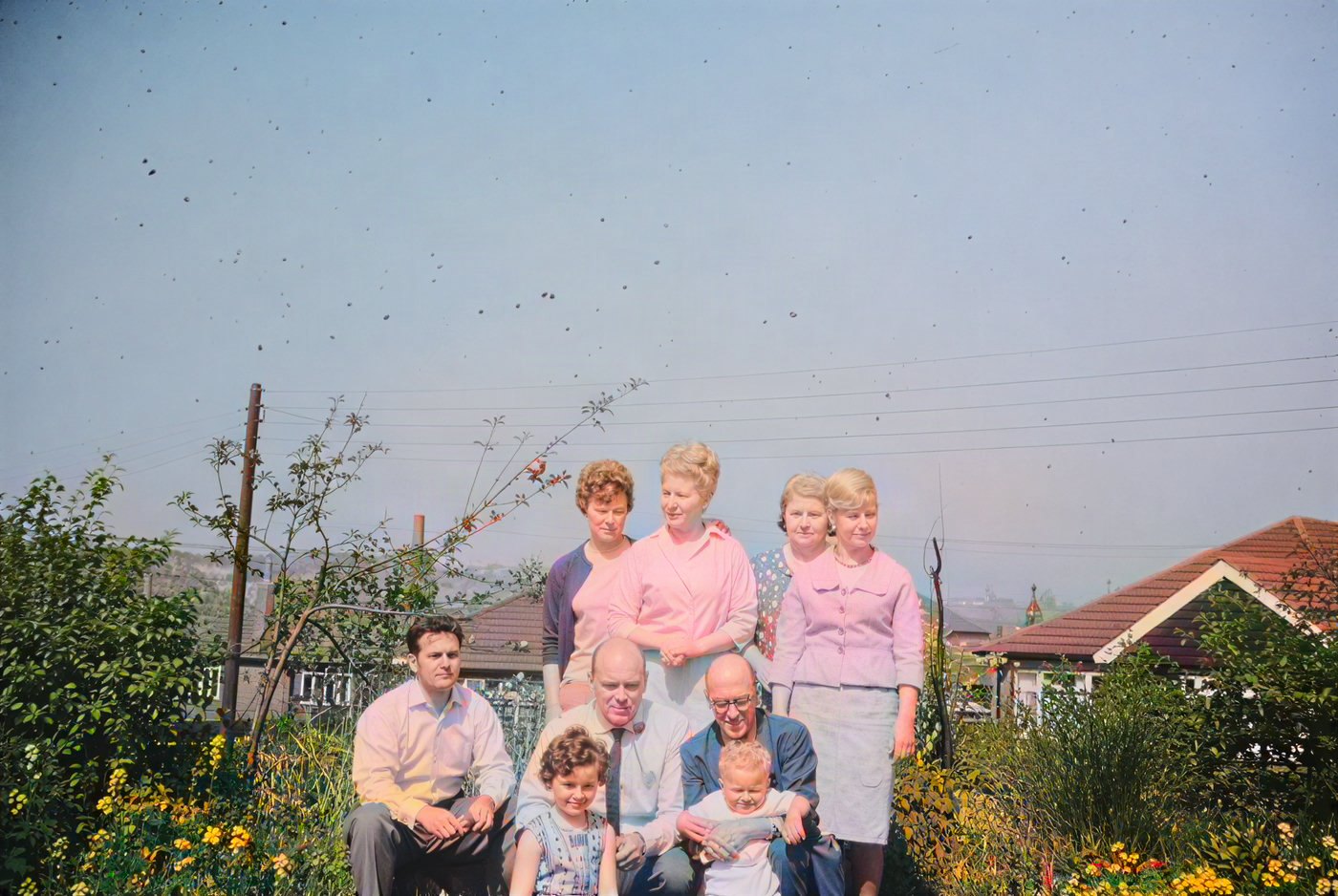
Real result
Colorize old family photos
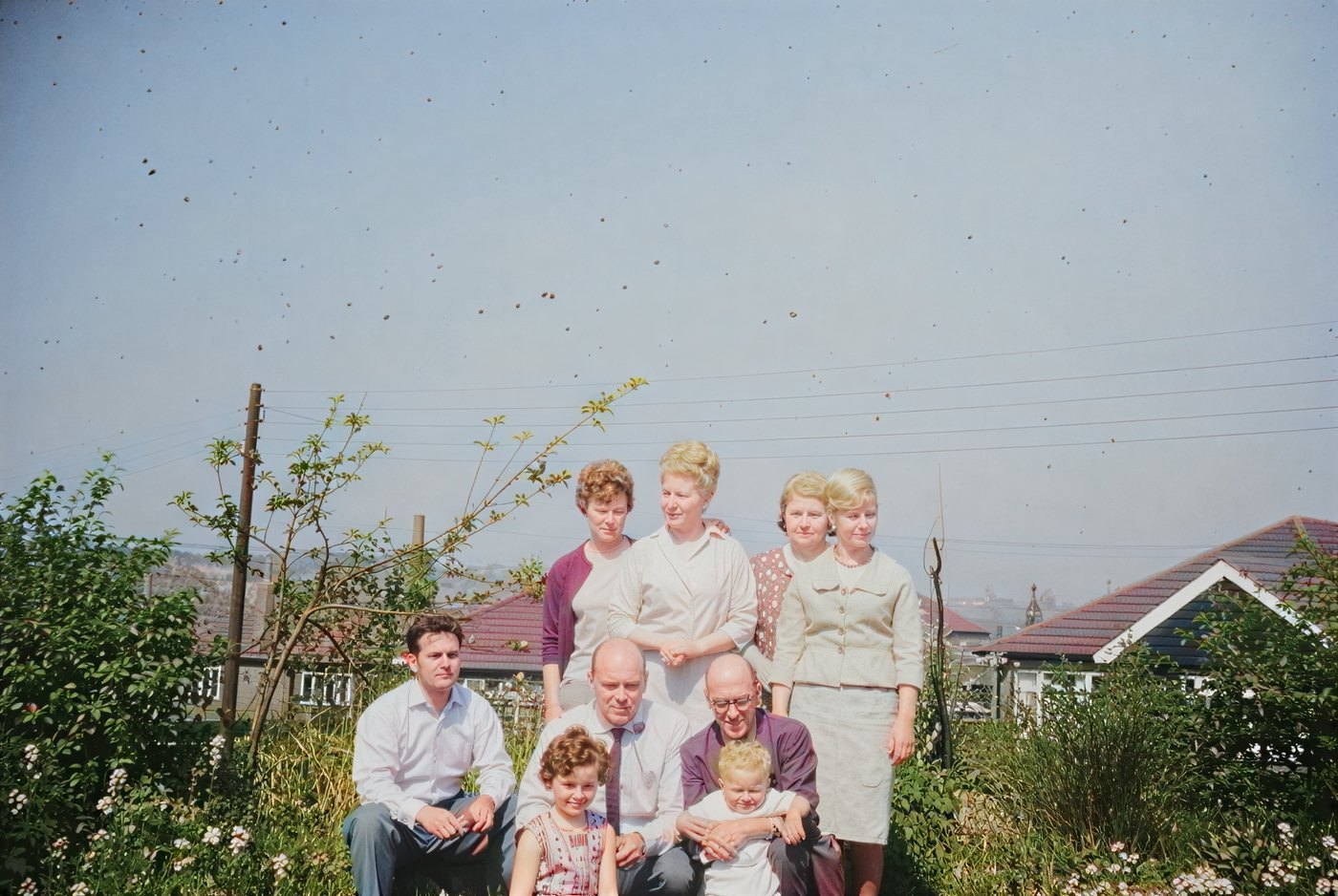
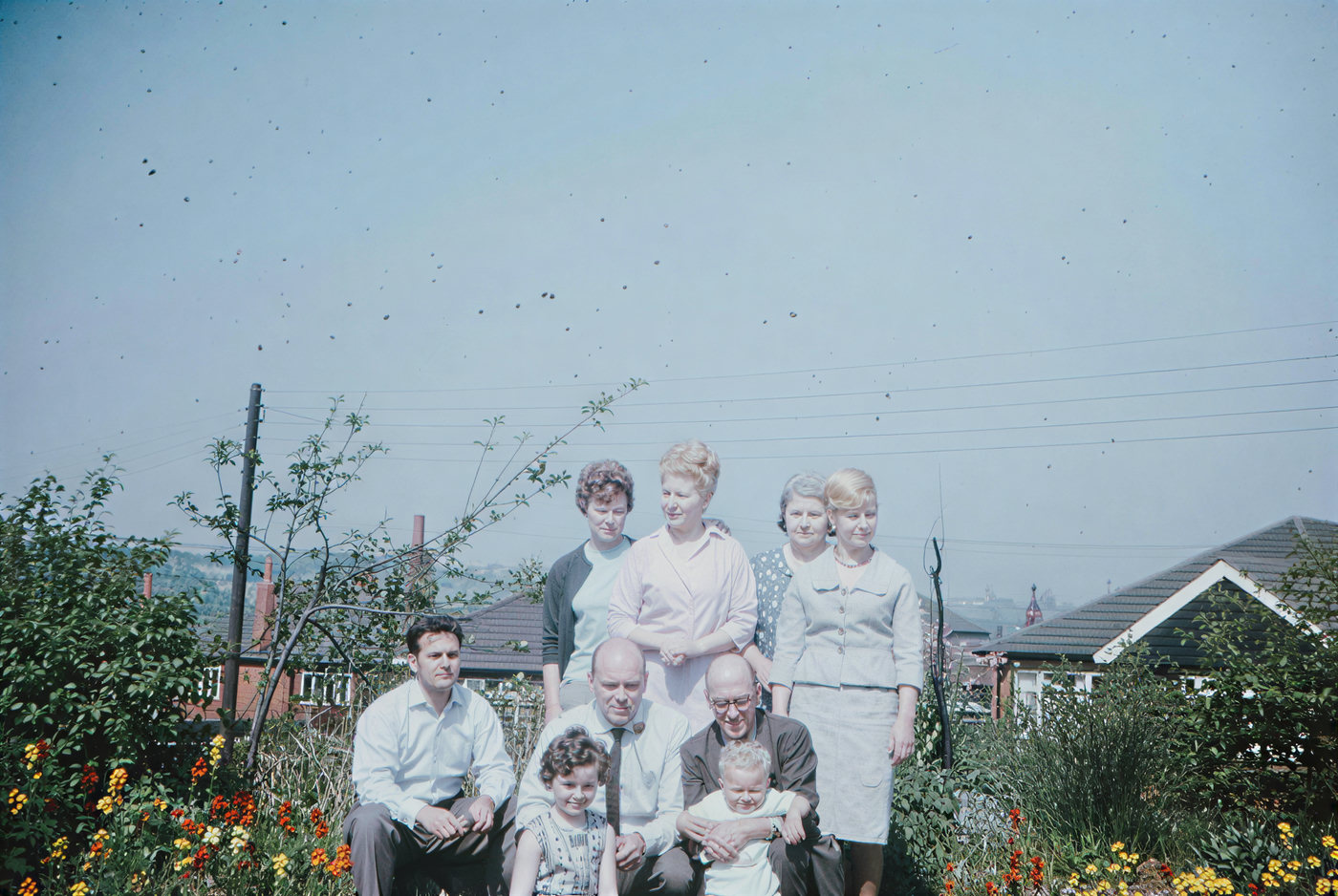
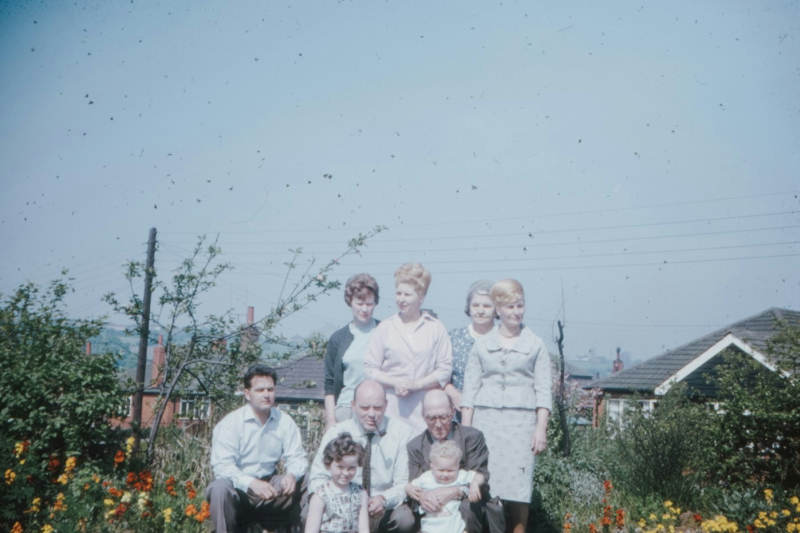
Skin, cardigans, garden flowers, and a tiled roof, all colorized from a grayscale copy.
Free · no account required
Colorize old family photos, scans, and grayscale pictures with natural skin, sky, and clothing tones.
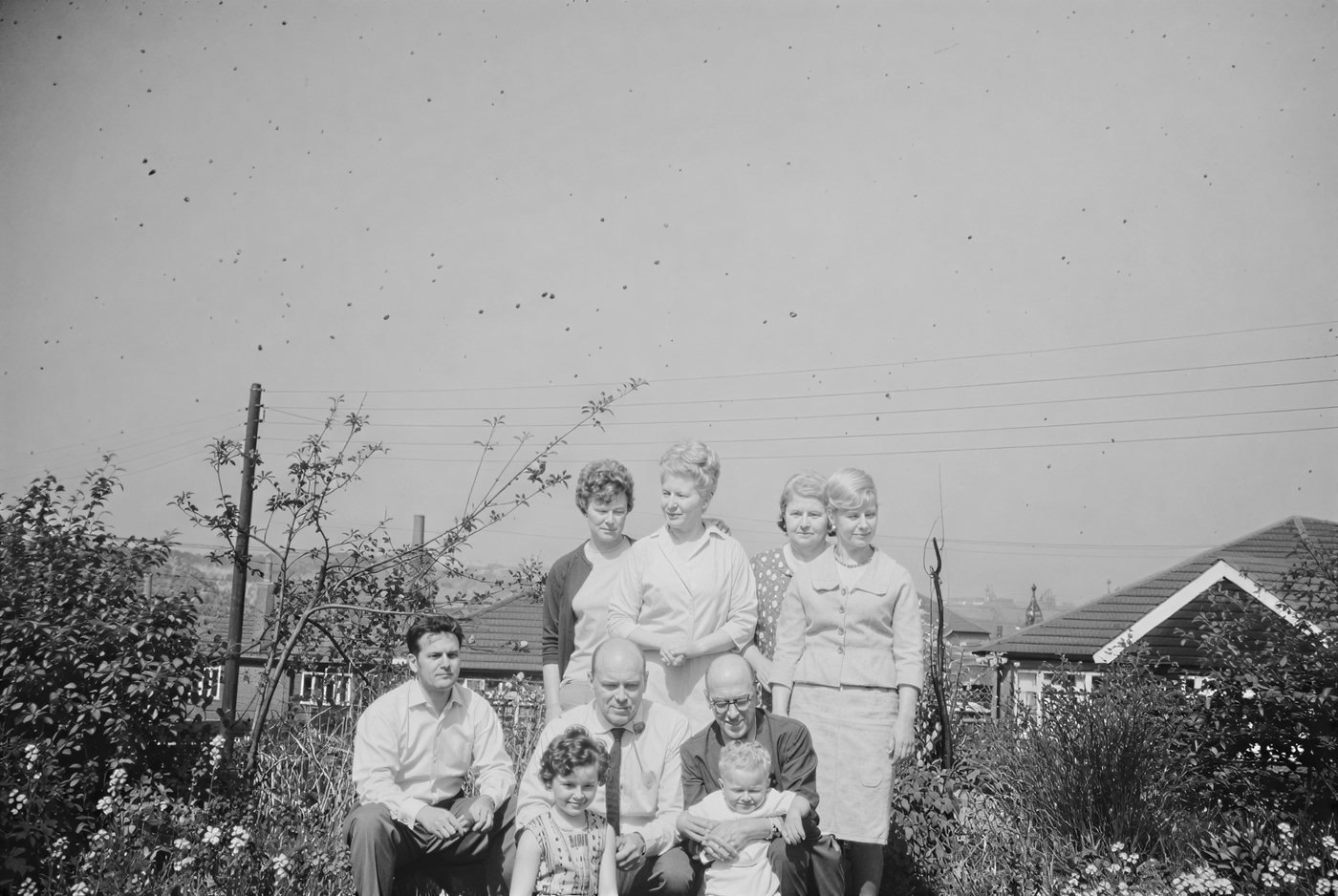
Real results from this colorizer. The first four cards start from a grayscale copy; the last two compare the Standard and Pro models on the same photo. Drag the slider to compare.
Skin, cardigans, garden flowers, and a tiled roof, all colorized from a grayscale copy.
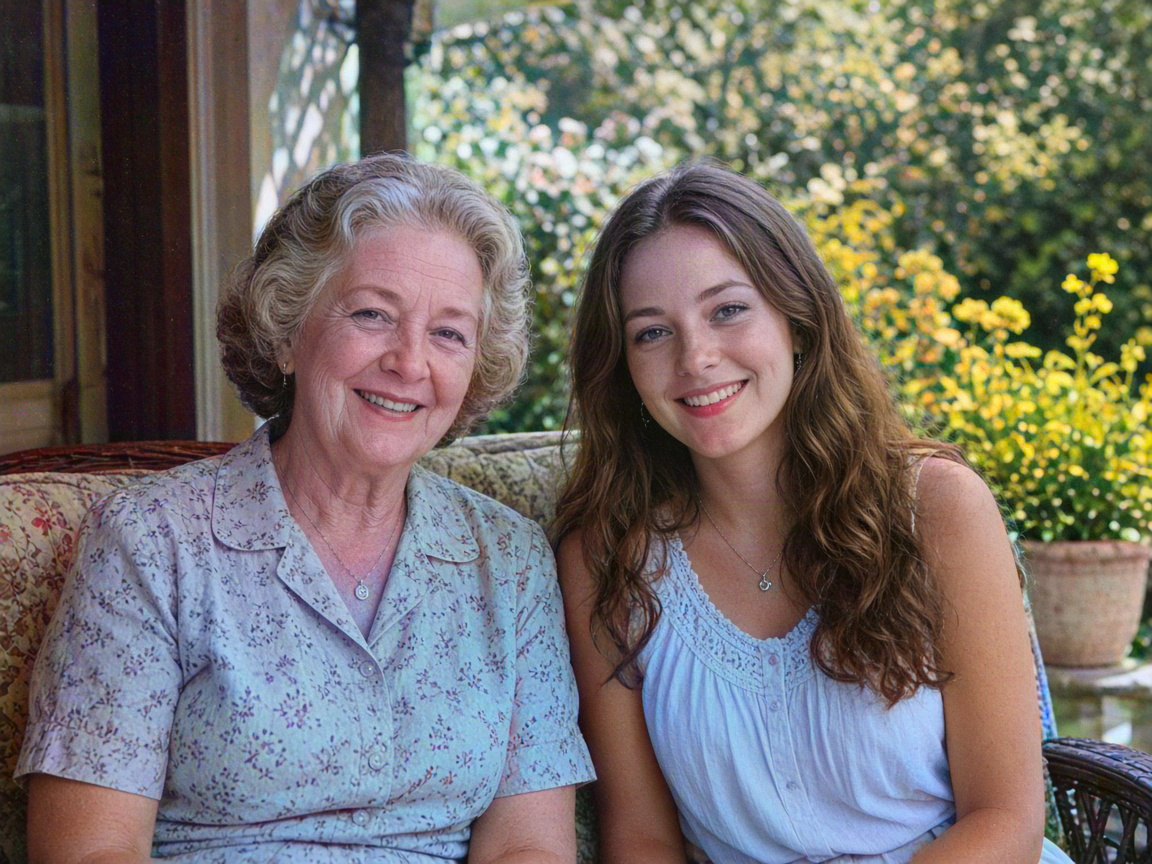
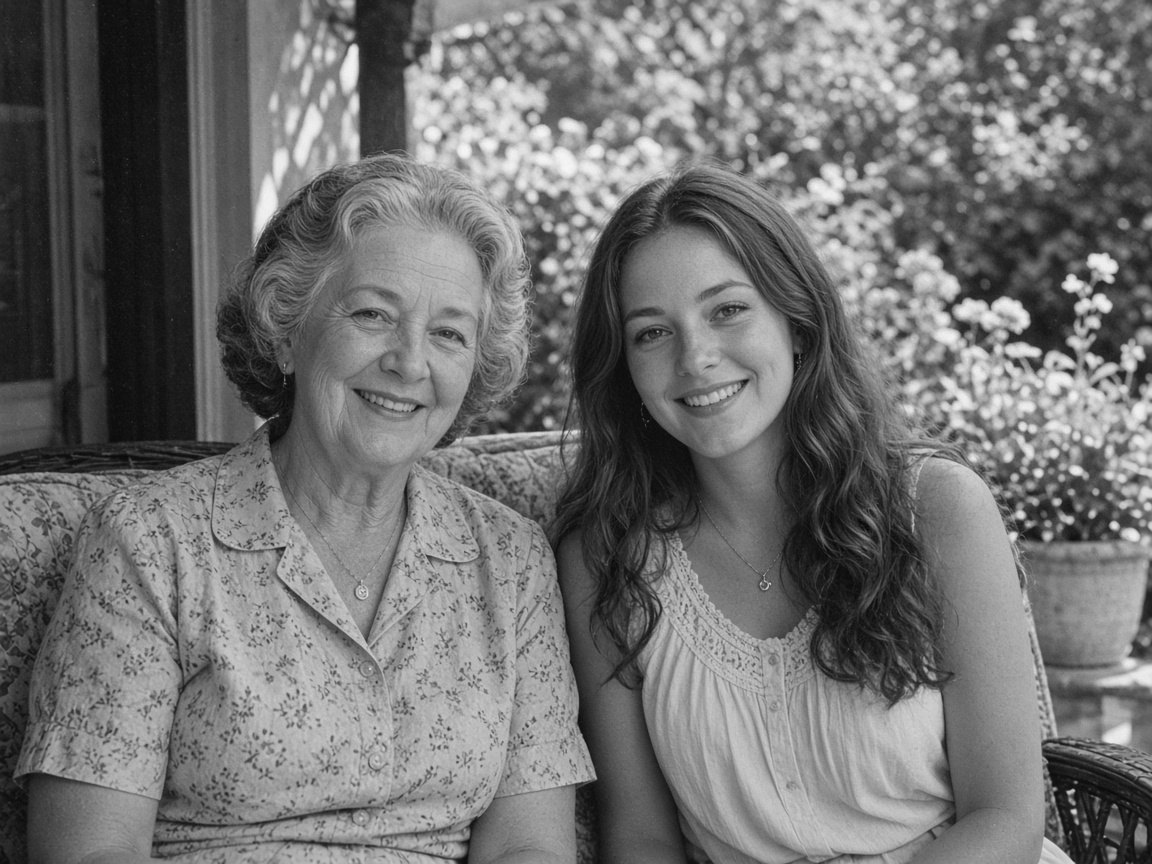
Natural skin tones and hair, with the garden behind them back in green and yellow.
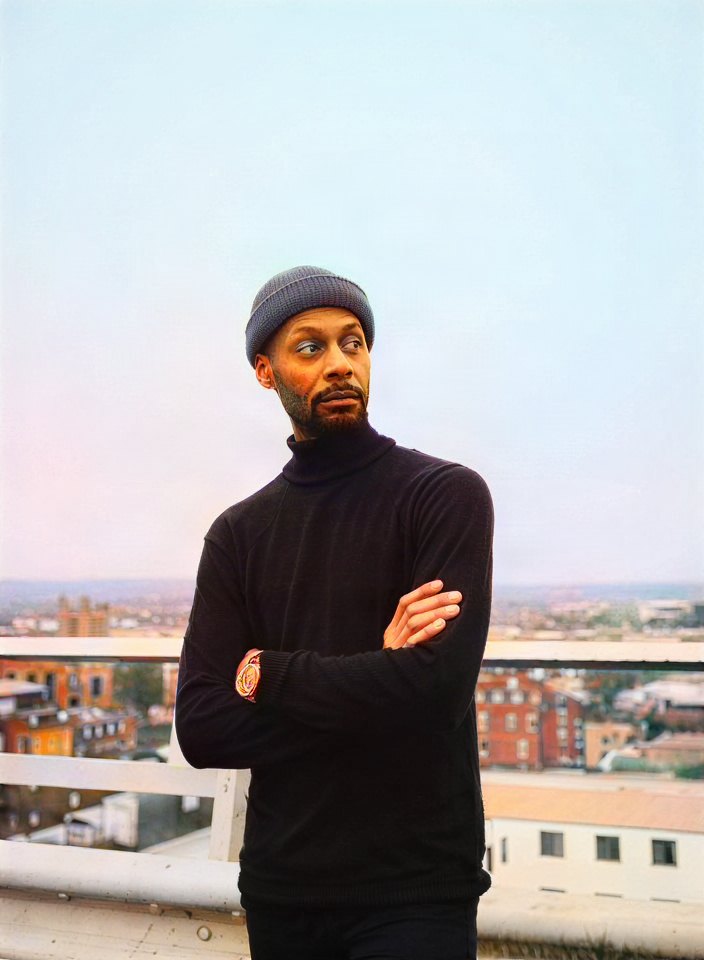
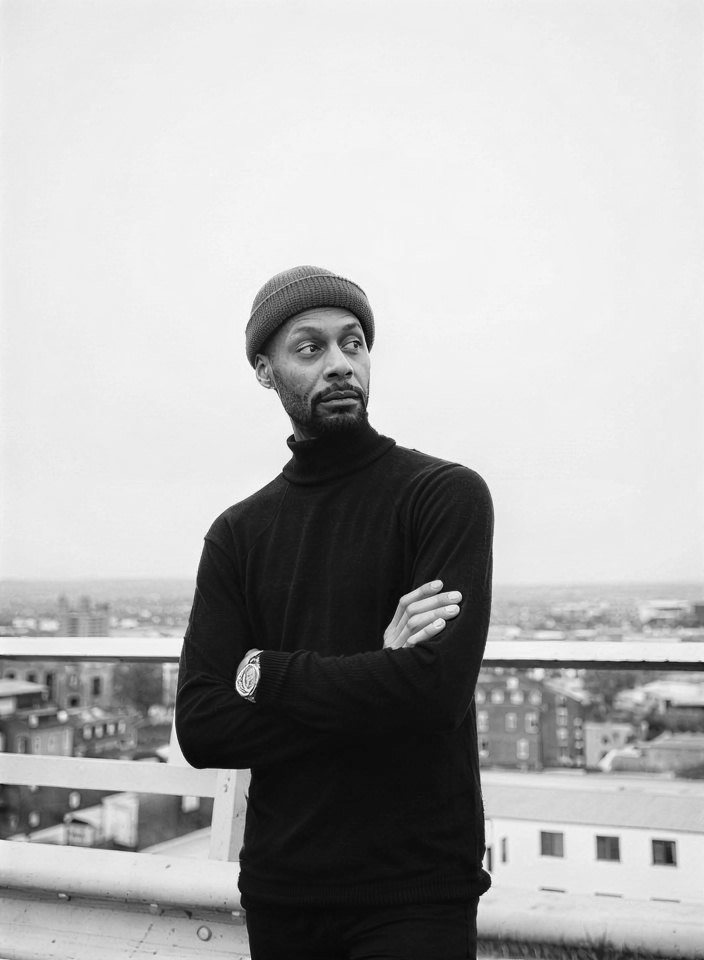
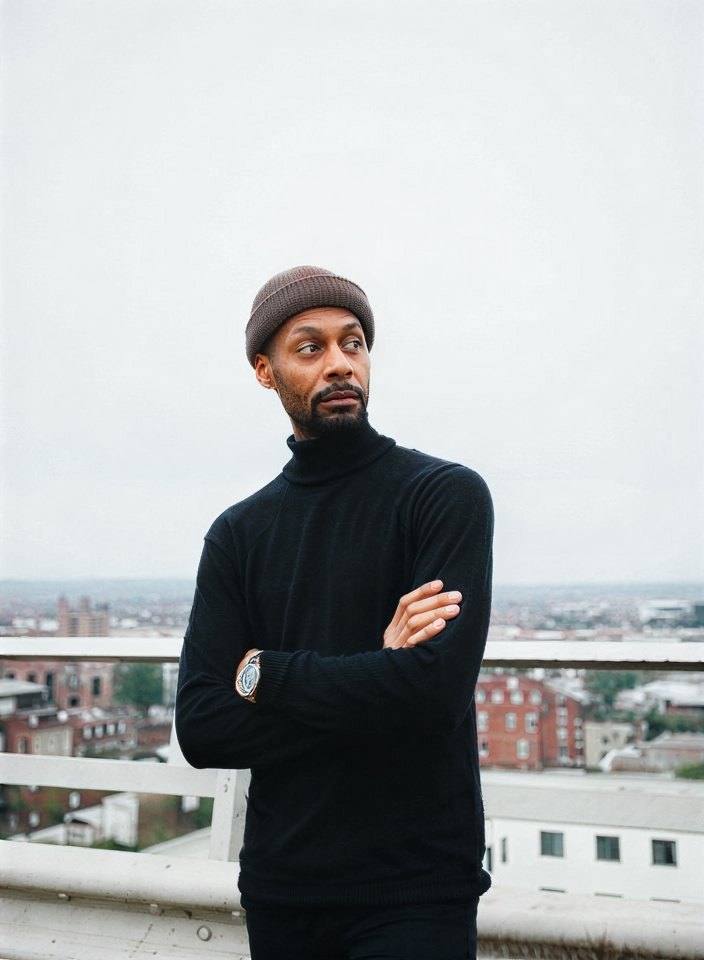
Skin and brick buildings look right. The beanie came out gray instead of its real orange: colors are predicted, not recovered.
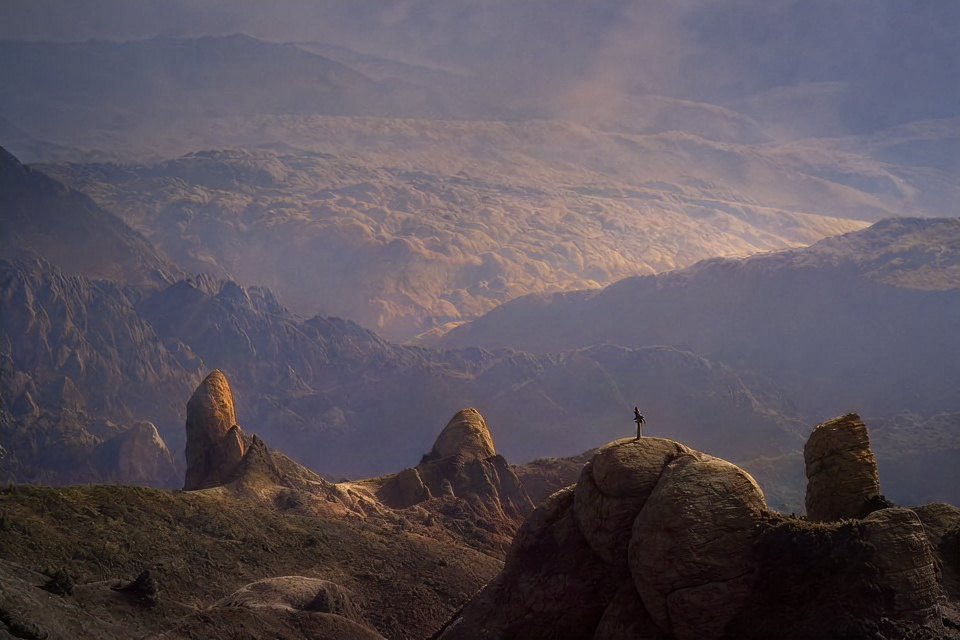
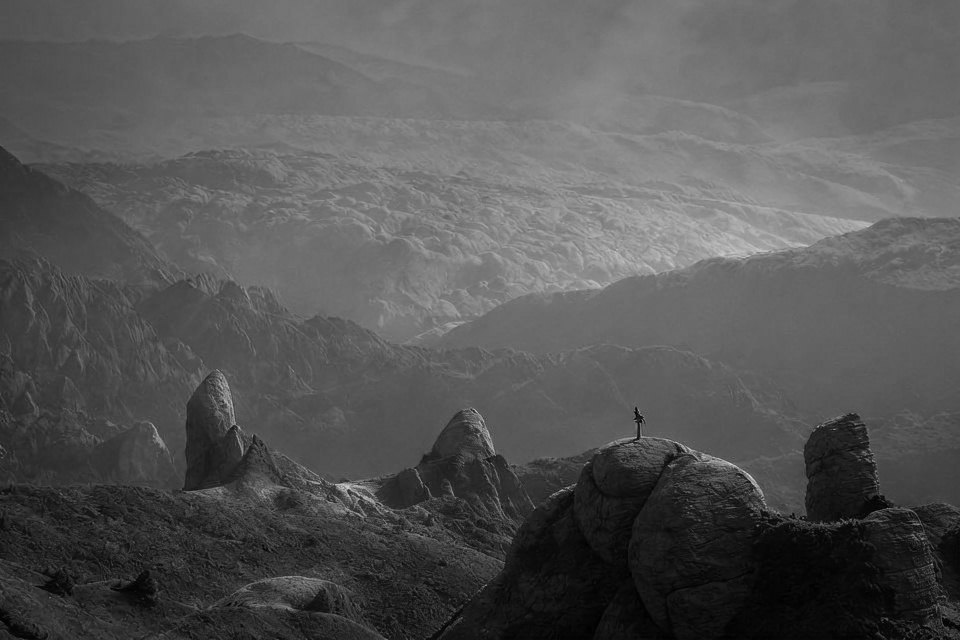
The AI read the rocks and haze as a warm dusk. Landscapes can take on a different mood than the original.
Standard (left) gives the skin an orange cast. Pro (right) keeps natural skin tones and clean whites.
Standard (left) tints most of the clothes pink. Pro (right) gives each outfit its own believable color.
Step 1
Add a grayscale scan, an old print you photographed, or any black and white image as JPG, PNG, or WebP, up to 15 MB.
Step 2
The colorization model reads faces, clothing, plants, sky, and buildings, then paints in color that fits each one.
Step 3
Drag the before and after slider to check the result, then download your colorized photo.
Many family memories only exist in black and white. The colorizer turns old photos, scans, and grayscale pictures into color with restrained, natural tones instead of a heavy filter.
The AI recognizes skin, hair, clothing, plants, sky, water, and buildings, and colors each area separately rather than tinting the whole picture one shade.
It works from the grayscale detail already in your photo, so faces, poses, and composition stay exactly as they were. Only color is added.
After colorizing, run the result through the AI Photo Enhancer to sharpen faces, or the Image Upscaler to enlarge it for printing and framing.
Old family albums and wedding photos from the 1900s to the 1980s, black and white portraits, historical street and city scenes, landscapes and architecture, and black and white film scans. Sharp, well-exposed originals give the most natural color.
If you're happy with the result, it's ready to save. If you also want to upscale, extend the edges, or refine other details, you can continue with:
Sharpen faces and fix blur in old photos before or after colorizing.
Try with this photo
Widen a tightly cropped old photo or scan so it fits a frame, banner, or phone wallpaper.
Try with this photo
Check whether a photo was AI-generated before you share or restore it.
Try with this photoEnhance
2Upscale & extend
2Free convert
10Convert WebP images to lossless PNG.
Free
Convert JFIF files to standard JPG format.
Free
Convert AVIF images to standard JPG format.
Free
Optimize PNG images into lightweight WebP.
Free
Convert JPG photos to lightweight WebP.
Free
Convert JPEG stills to WebP for the web.
Free
Convert WebP images to standard JPG.
Free
Convert WebP images to JPEG files.
Free
Convert PNG stills to smaller JPG photos.
Free
Convert JPG photos to PNG for editing.
Free