 lumenfix
Runs in your browser · the file is never uploaded
Black and White Photo Converter: Make a Photo Black and White
Convert a color photo to black and white for free, right in your browser. The photo never leaves your device, and the result keeps its full size with no watermark.
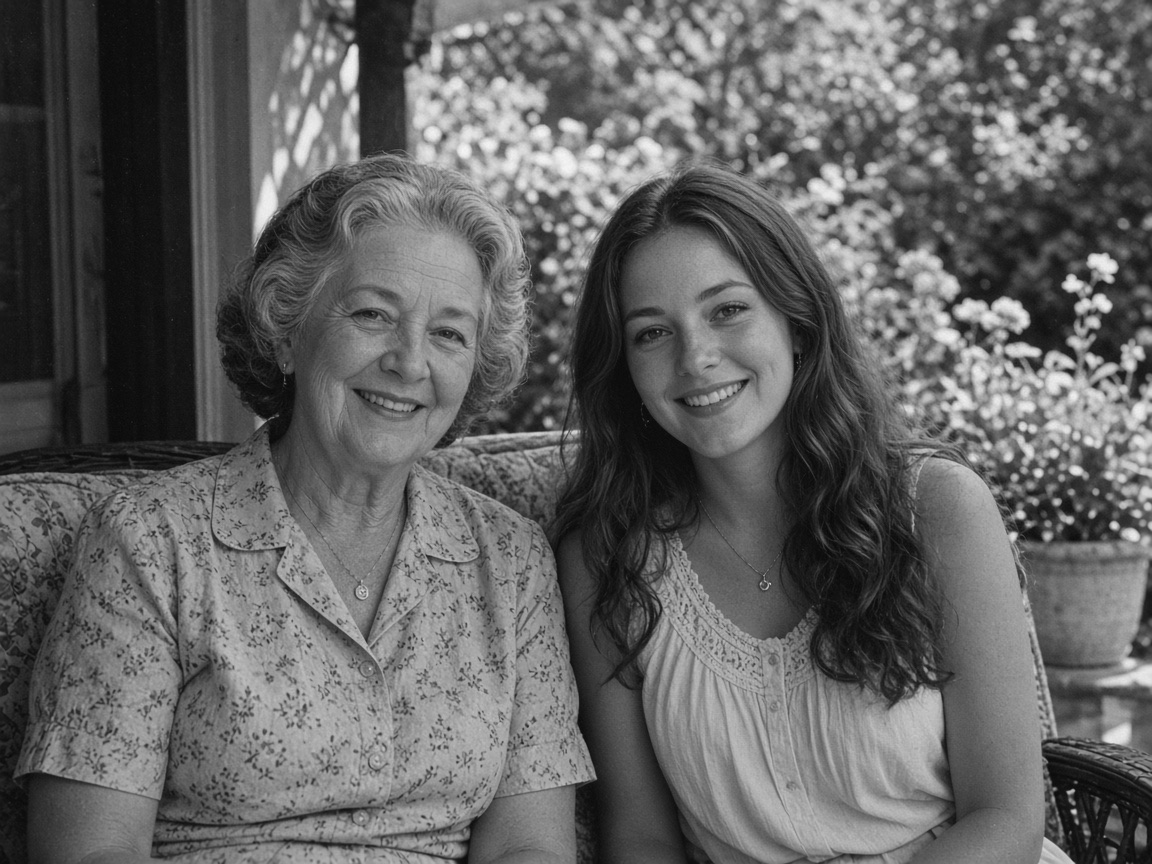
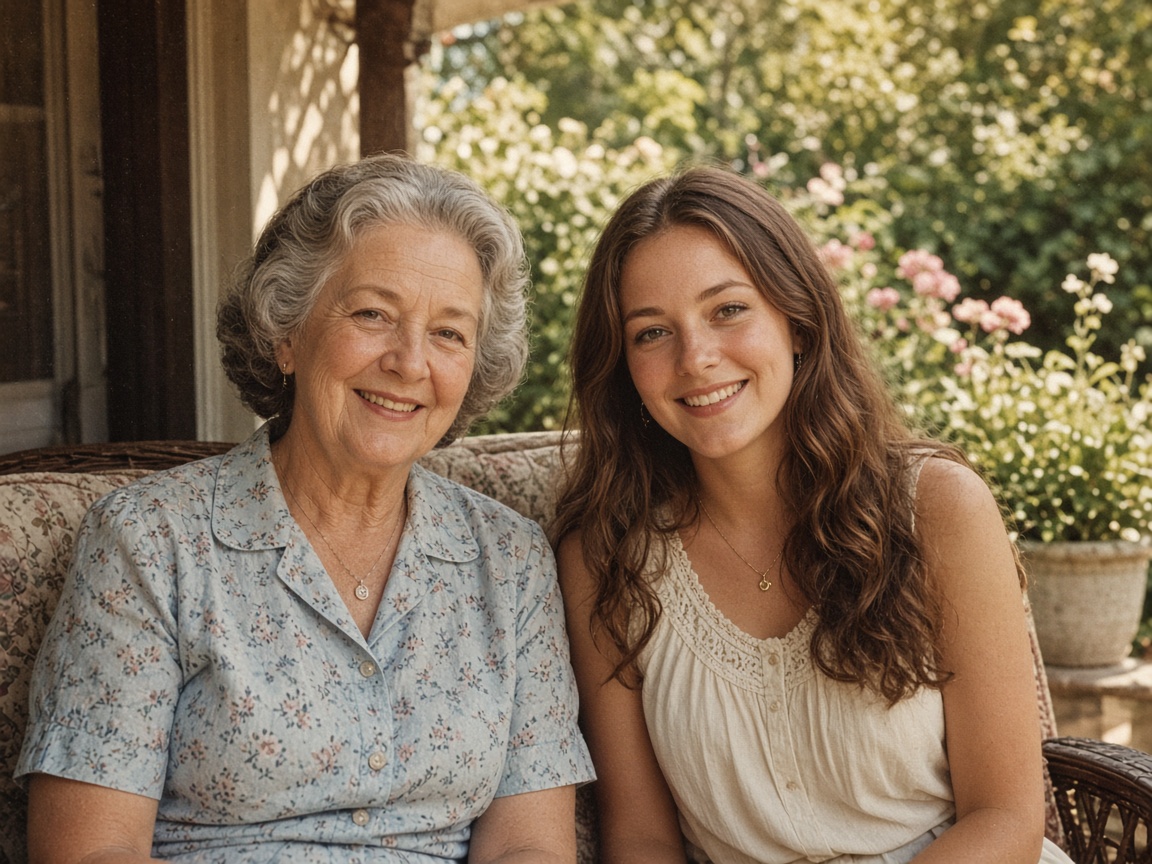
How to convert a photo to black and white
Step 1
Choose your photo
Drop or select a JPG, PNG, or WebP. On a phone, pick it straight from your photo library.
Step 2
It converts right away
Your browser turns the colors into shades of gray on your device. Nothing is uploaded, so even a large photo takes about a second.
Step 3
Compare and download
Drag the slider to compare with the color original, then download the black and white copy.
What the black and white converter does
It turns a color picture into black and white (grayscale) by mixing each pixel's red, green, and blue into one brightness value, weighted the way the eye sees them: 29.9% red, 58.7% green, and 11.4% blue. Greens and skin tones keep their natural brightness instead of turning flat.
The conversion runs in your browser tab. The photo is never uploaded, there is no account, and there is no limit on how many pictures you convert.
The result keeps the original width and height and has no watermark. PNG and WebP stay PNG and WebP, so transparent backgrounds stay transparent. JPG and other photos come out as high-quality JPG.
Want to go the other way? The Photo Colorizer adds color to an old black and white photo with AI.
Photos to make black and white
Portraits and family photos for a classic look, product shots and documents for a black and white printer, artwork for a consistent gallery, and any photo you want to print in grayscale to save color ink.
What it does not do
- It does not add filters, film grain, or a contrast boost. You get a straight grayscale conversion; raise the contrast afterward in a photo editor if you want a moodier look.
- It does not open iPhone HEIC files. Convert them to JPG first, or set the camera to Most Compatible.
- It does not keep camera metadata. Location, date, and camera details are dropped from the downloaded file.
- It converts one photo at a time.
Need further adjustments?
If you're happy with the result, it's ready to save. If you also want to upscale, extend the edges, or refine other details, you can continue with:
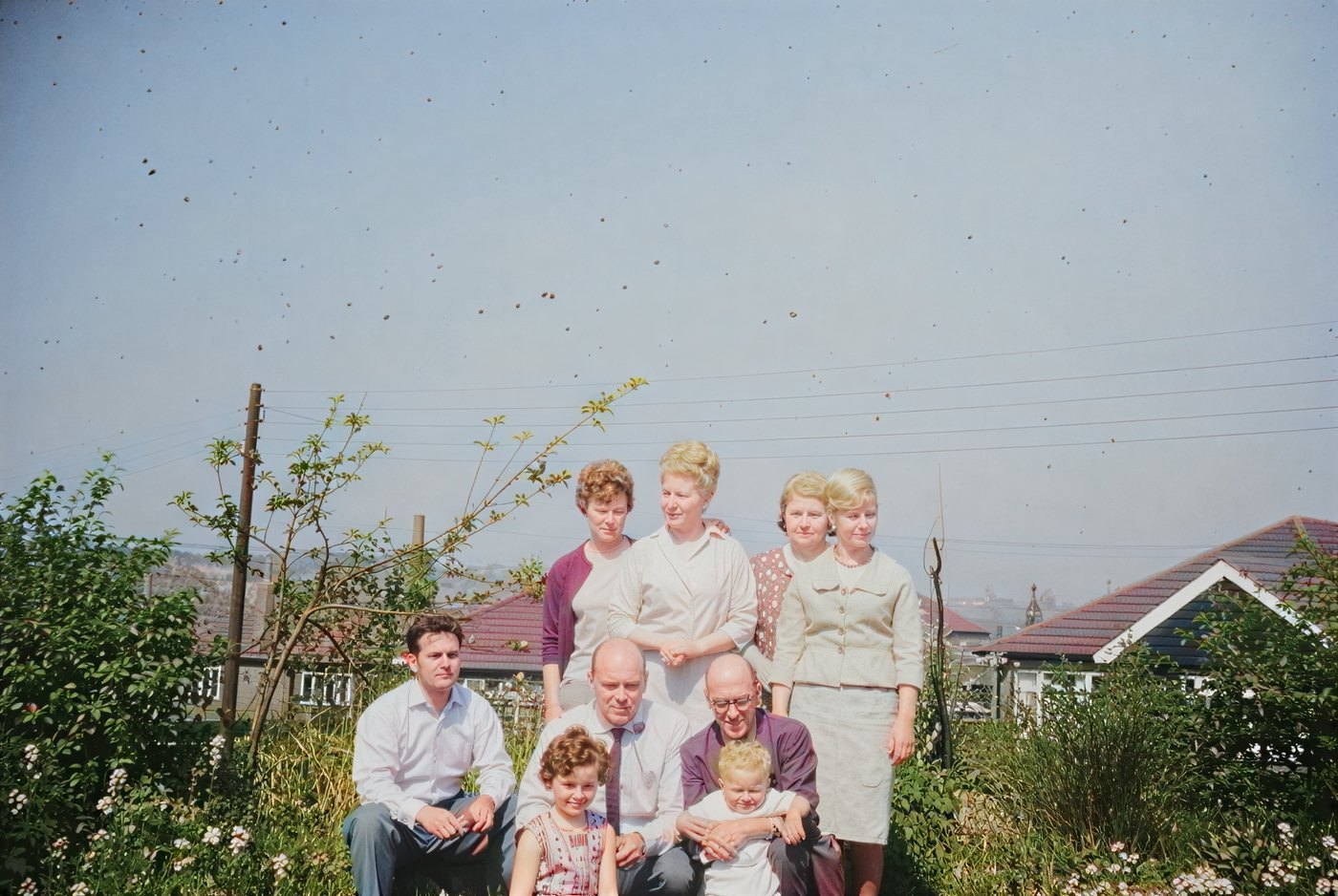 BeforeAfter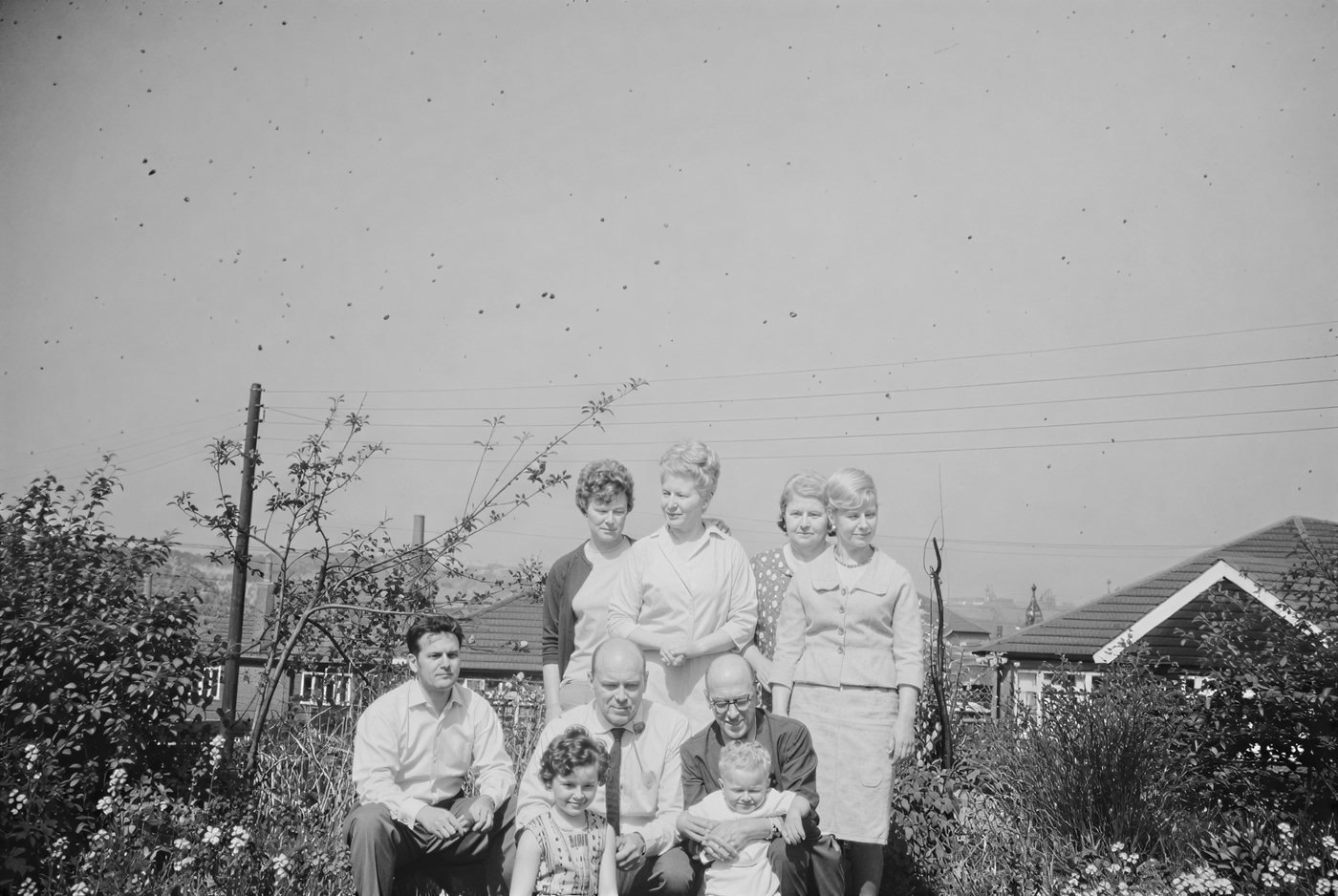
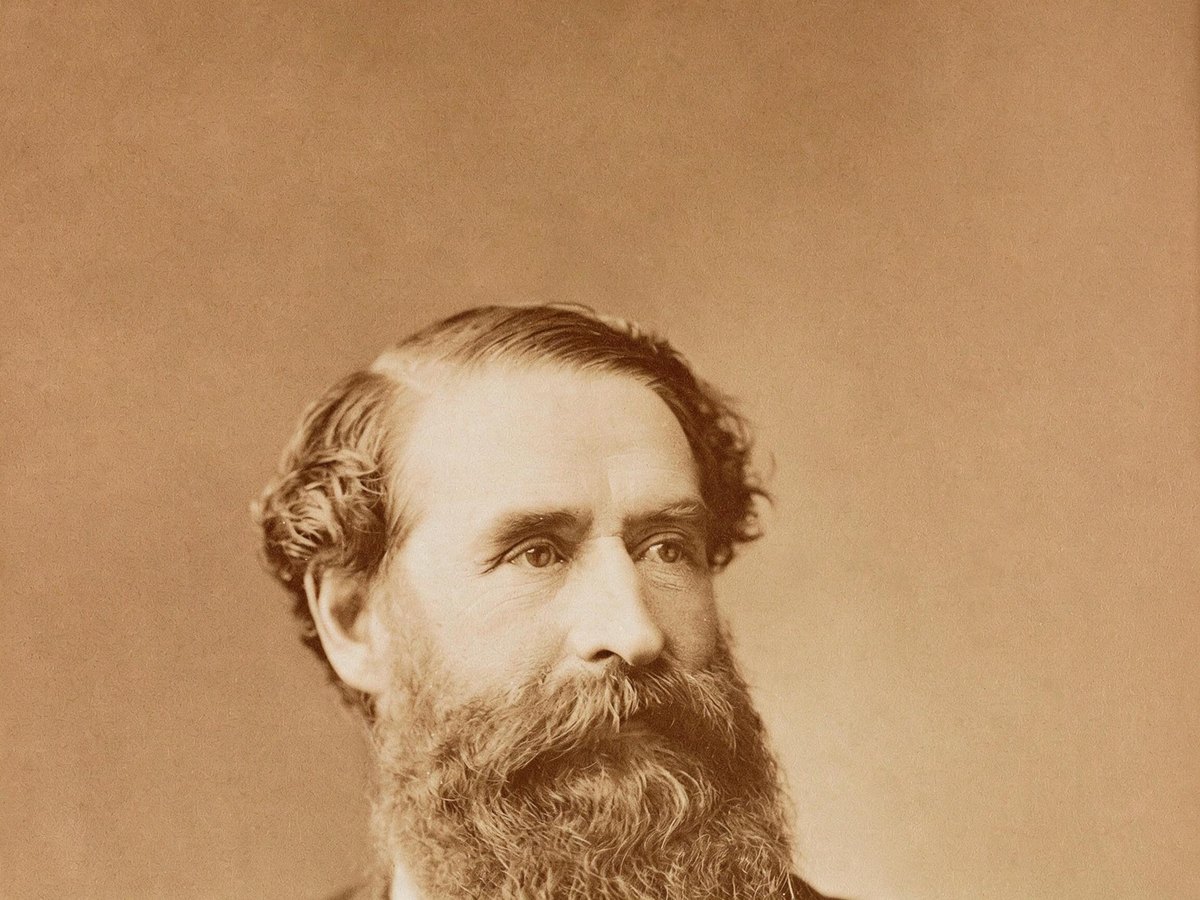 BeforeAfter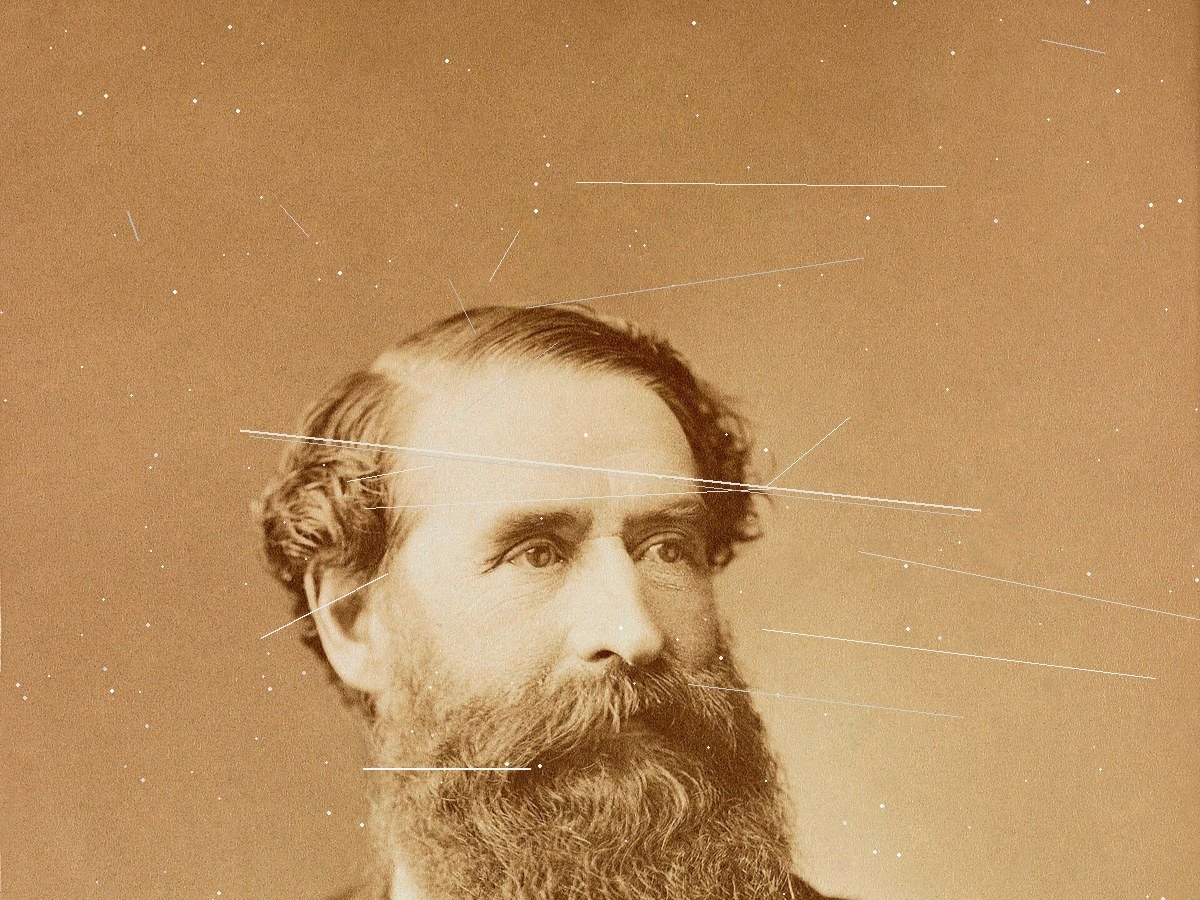
Black and white photo converter FAQ
All tools
Enhance
6Image & photo enhancer
General AI image enhancement. Standard 2×, Pro for finer detail and color.
Credits · Pro
Unblur imageNew
Fix motion blur and soft focus in photos and portraits.
Credits · Pro
Unblur text
Sharpen blurry text and screenshots cleanly.
Credits · Pro
Remove glareNew
Take glare off glasses, camera flash, and sun.
4 credits
Photo restorationNew
Repair scratches, creases, and tears on an old print.
4 credits
Photo colorizerNew
Add natural, lifelike color to black-and-white photos.
Credits · Pro
Restyle
6AI Christmas photoNew
Put the people in your photo into a Christmas scene.
4 credits
Photo to paintingNew
Turn a photo into an oil painting or watercolor.
4 credits
Photo to sketchNew
Turn a photo into a pencil drawing.
4 credits
Photo to coloring pageNew
Turn a photo into a page to print and color.
4 credits
Photo to cartoonNew
Turn a photo into a cartoon.
4 credits
Photo to black and whiteNew
Make a color photo black and white in your browser.
Free · Local
Upscale & extend
2Erase
2Free convert
10WebP to PNG
Convert WebP images to lossless PNG.
Free
JFIF to JPG
Convert JFIF files to standard JPG format.
Free
AVIF to JPG
Convert AVIF images to standard JPG format.
Free
PNG to WebP
Optimize PNG images into lightweight WebP.
Free
JPG to WebP
Convert JPG photos to lightweight WebP.
Free
JPEG to WebP
Convert JPEG stills to WebP for the web.
Free
WebP to JPG
Convert WebP images to standard JPG.
Free
WebP to JPEG
Convert WebP images to JPEG files.
Free
PNG to JPG
Convert PNG stills to smaller JPG photos.
Free
JPG to PNG
Convert JPG photos to PNG for editing.
Free