 lumenfix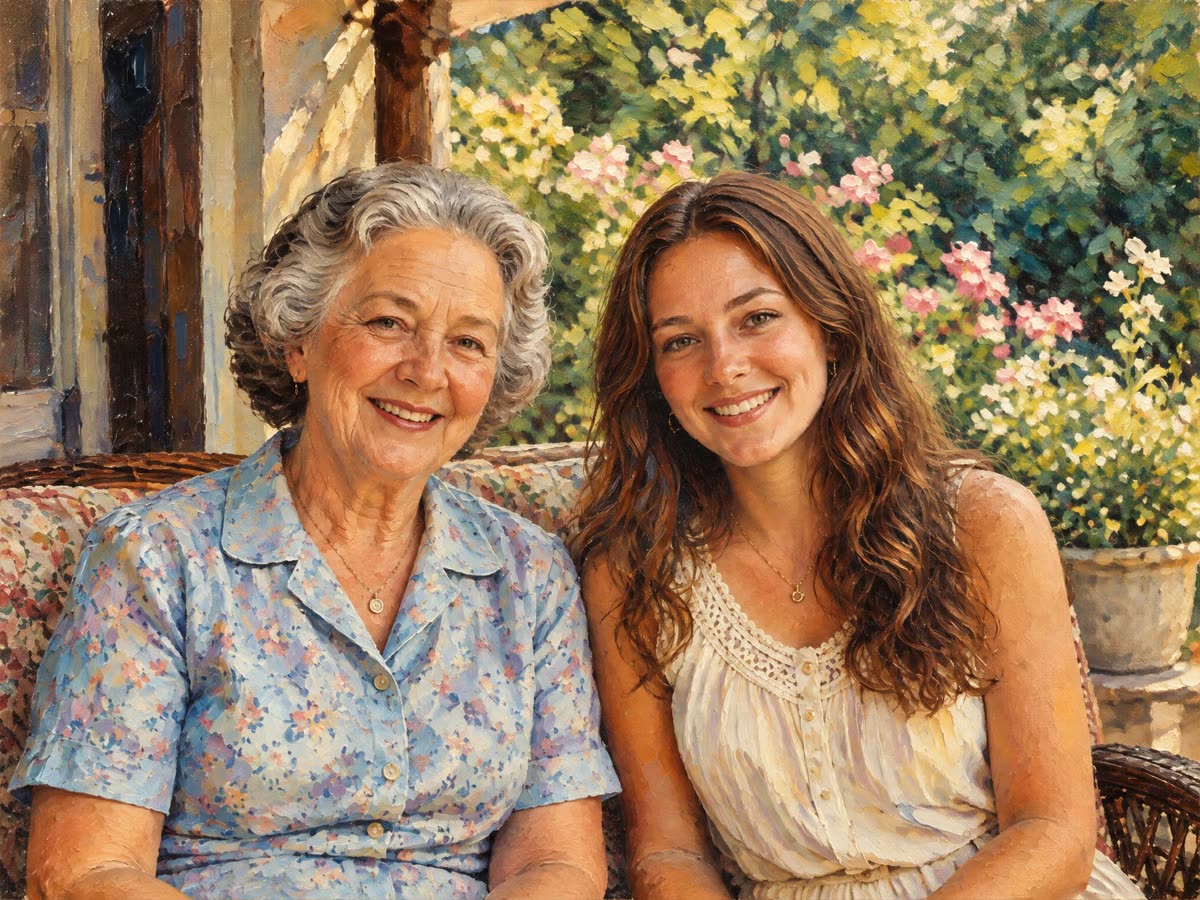
Real result
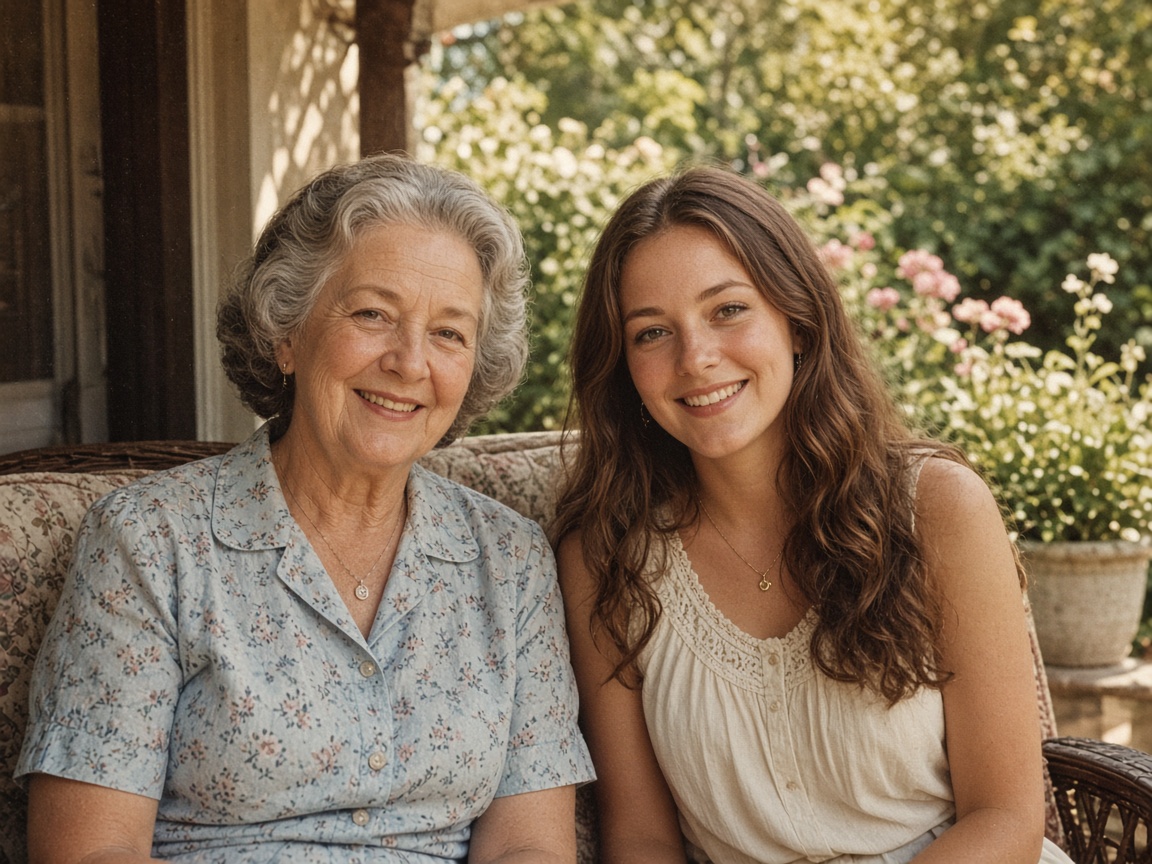
Mother and daughter, oil
Both faces and smiles stayed close to the photo. The porch and the flowers became thick, visible brushstrokes.
Free · no account required
Upload a photo of people, a pet, or a place. Pick oil or watercolor, and get a painting of the same picture.
Oil and watercolor on two portraits and a cat. Every after side is a real result. Drag the slider and read what changed.
Both faces and smiles stayed close to the photo. The porch and the flowers became thick, visible brushstrokes.
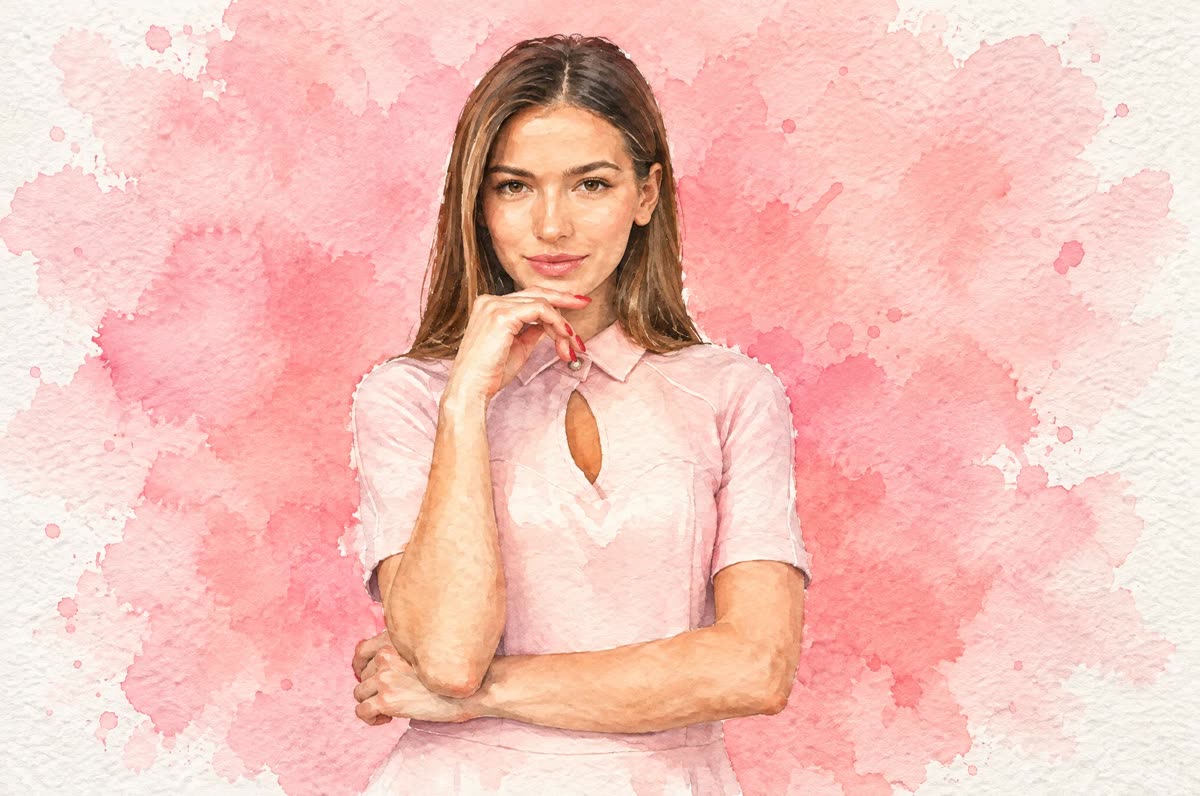

The pose and face stayed the same. The plain pink wall became a loose pink wash with white paper around the edges.
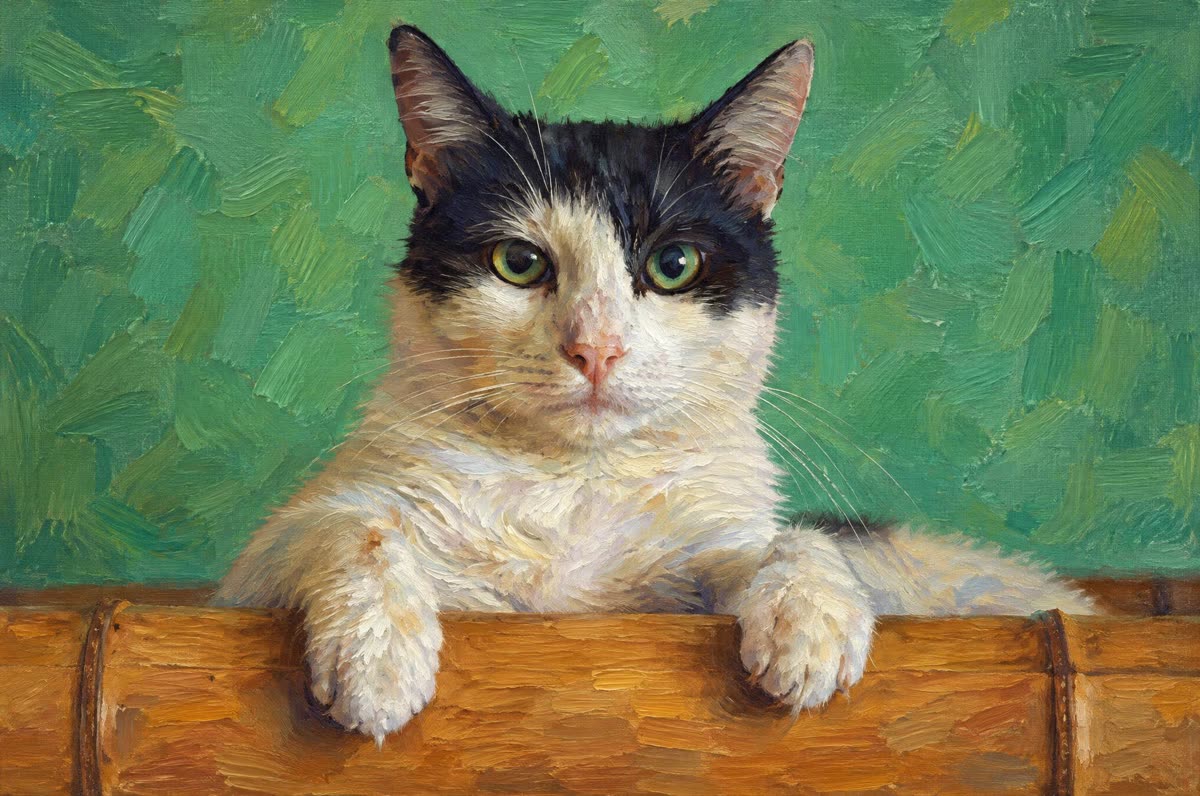
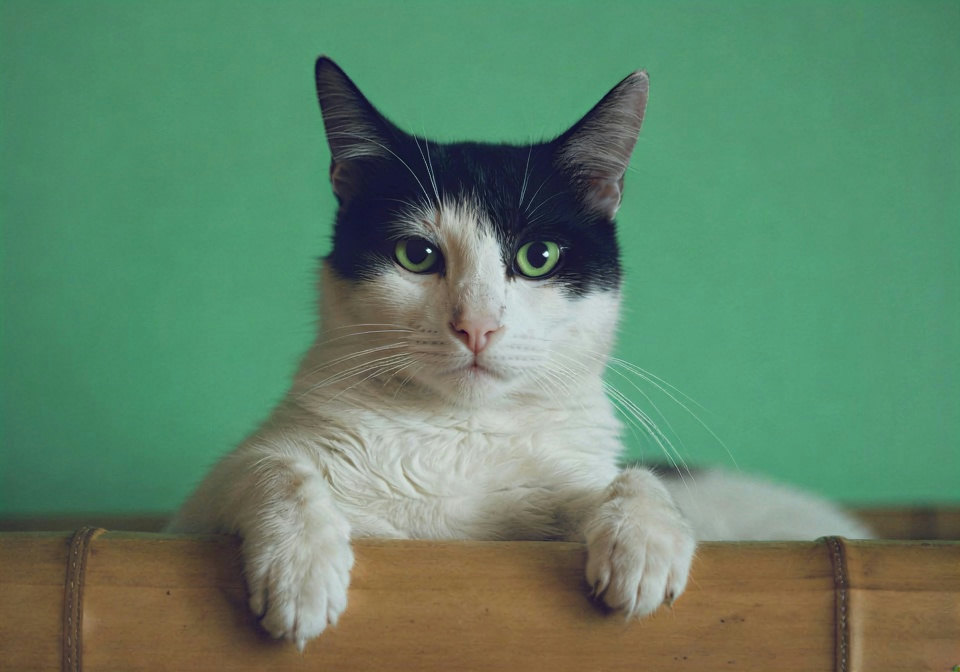
The black ears and the green wall stayed. The white of the face came out a little creamier than the photo.
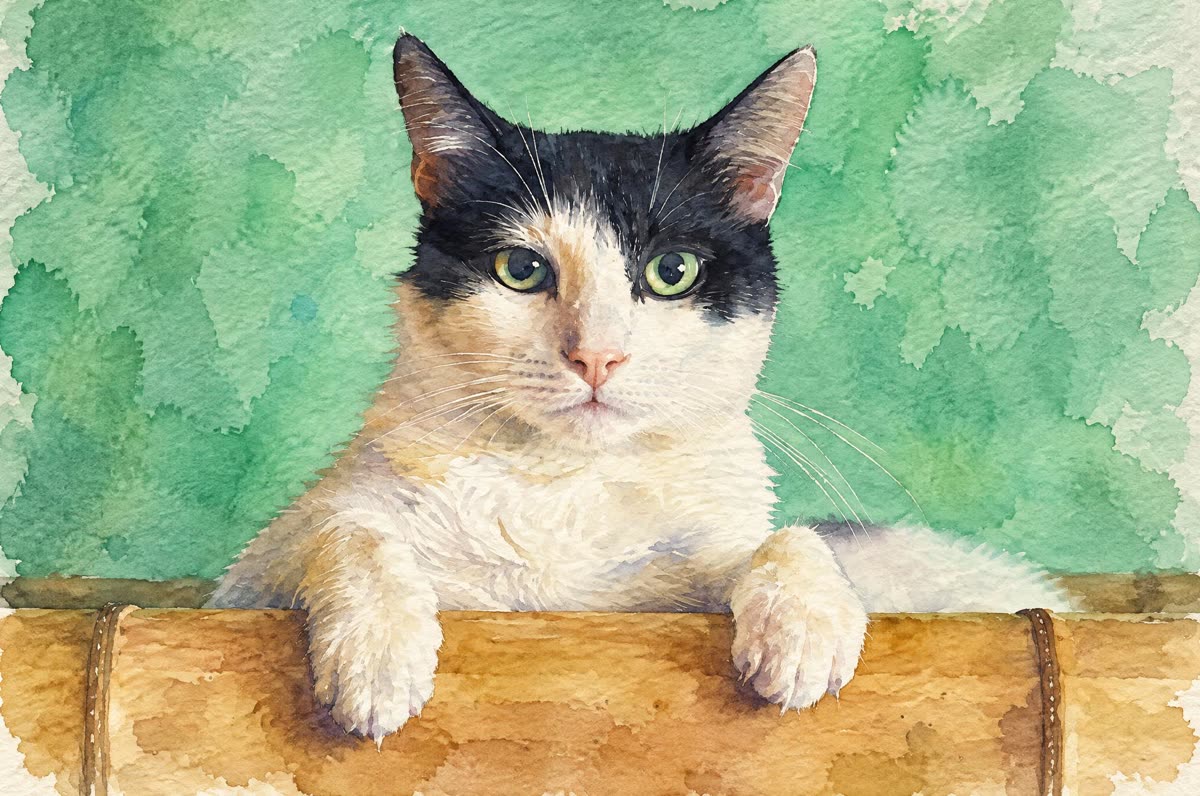
The black face markings and green eyes stayed. The background became soft green washes.
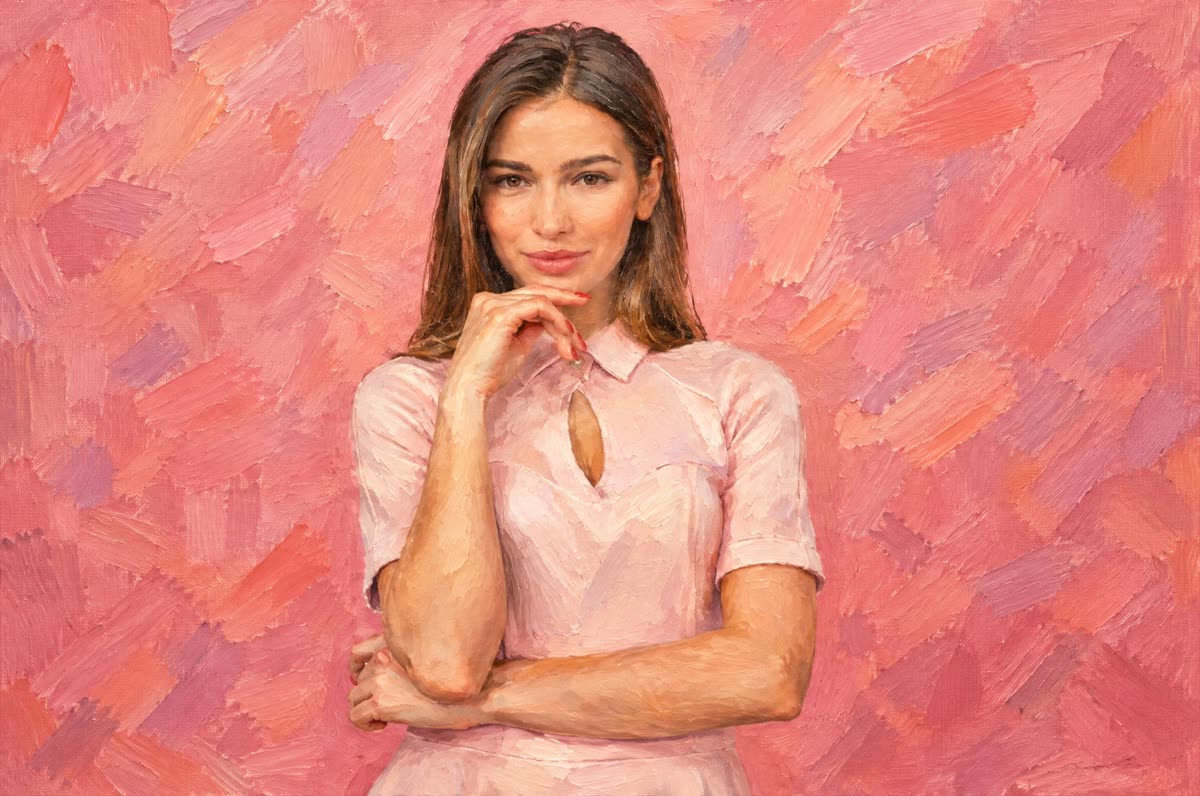
The same pose, hand, and face. The flat pink wall became short, layered brushstrokes.
Step 1
Oil painting gives visible brushstrokes and rich color. Watercolor gives soft washes on textured paper.
Step 2
A JPG, PNG, or WebP up to 15 MB. The run starts as soon as the photo is uploaded and uses your daily free credits when you still have them.
Step 3
Drag the slider, check faces and pet markings, then download. Each run is a little different, so run it again if something looks off.
It repaints your whole picture in the style you pick. The people, the pet, the pose, and the framing stay the same; the surface becomes brushstrokes or watercolor washes.
There is no prompt to write and no style to describe. Pick oil or watercolor and upload.
The result is a 2K image (2048 px on the long side), large enough for a small print. For a bigger canvas print, run it through the Image Upscaler afterward.
For a black-and-white version, try Photo to Sketch. For an old, damaged print, repair it on Photo Restoration first.
Portraits, couples, family photos, pets, and travel shots with a clear subject. Each card below is a real result and says what changed.
One upload, one style, one painting. The subject stays; the surface changes.
01
Visible brushstrokes, rich color, and a painted background. It reads as a canvas, not a photo filter.
02
Soft washes, gentle color bleeds, and white paper showing through at the edges.
03
The prompt asks the model to keep faces, hair, age, and fur markings. Check every face and pet before you print.
04
A free run exports a JPG up to 2048 px on the long side, with no watermark. A Pro subscription uses the same model at the same credit cost.
Every after side is a real run, not a retouched picture. Each card says what changed.
Both faces and smiles stayed close to the photo. The porch and the flowers became thick, visible brushstrokes.
The pose and face stayed the same. The plain pink wall became a loose pink wash with white paper around the edges.
The black ears and the green wall stayed. The white of the face came out a little creamier than the photo.
The black face markings and green eyes stayed. The background became soft green washes.
The same pose, hand, and face. The flat pink wall became short, layered brushstrokes.
These are tips for the photo you upload. They are not a promise about the result.
A blurry face becomes a blurry painted face. Fix soft photos with the AI Photo Enhancer first.
A tighter crop gives faces and fur more pixels, so more detail survives the repaint.
Oil reads well large and on canvas. Watercolor suits light, airy prints and cards.
Each run is different. If one face or marking is off, run the same photo again before you change anything.
If you're happy with the result, it's ready to save. If you also want to upscale, extend the edges, or refine other details, you can continue with:
Enhance
5General AI image enhancement. Standard 2×, Pro for finer detail and color.
Free · Pro
Sharpen blurry text and screenshots cleanly.
Free · Pro
Take glare off glasses, camera flash, and sun.
Free · 4 credits
Repair scratches, creases, and tears on an old print.
Free · 4 credits
Add natural, lifelike color to black-and-white photos.
Free · Pro
Restyle
5Put the people in your photo into a Christmas scene.
Free · 4 credits
Turn a photo into an oil painting or watercolor.
Free · 4 credits
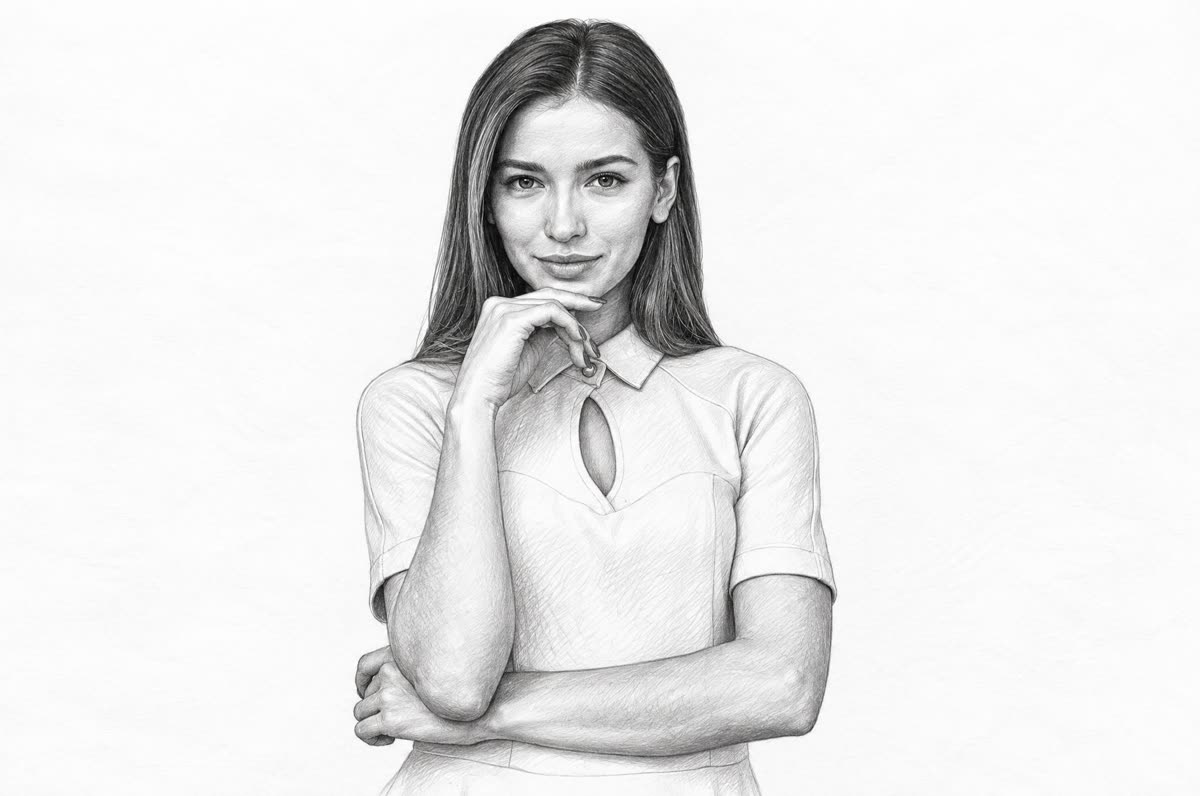
Turn a photo into a pencil drawing.
Free · 4 credits
Turn a photo into a page to print and color.
Free · 4 credits
Turn a photo into a cartoon.
Free · 4 credits
Upscale & extend
2Free convert
10Convert WebP images to lossless PNG.
Free
Convert JFIF files to standard JPG format.
Free
Convert AVIF images to standard JPG format.
Free
Optimize PNG images into lightweight WebP.
Free
Convert JPG photos to lightweight WebP.
Free
Convert JPEG stills to WebP for the web.
Free
Convert WebP images to standard JPG.
Free
Convert WebP images to JPEG files.
Free
Convert PNG stills to smaller JPG photos.
Free
Convert JPG photos to PNG for editing.
Free