 lumenfix
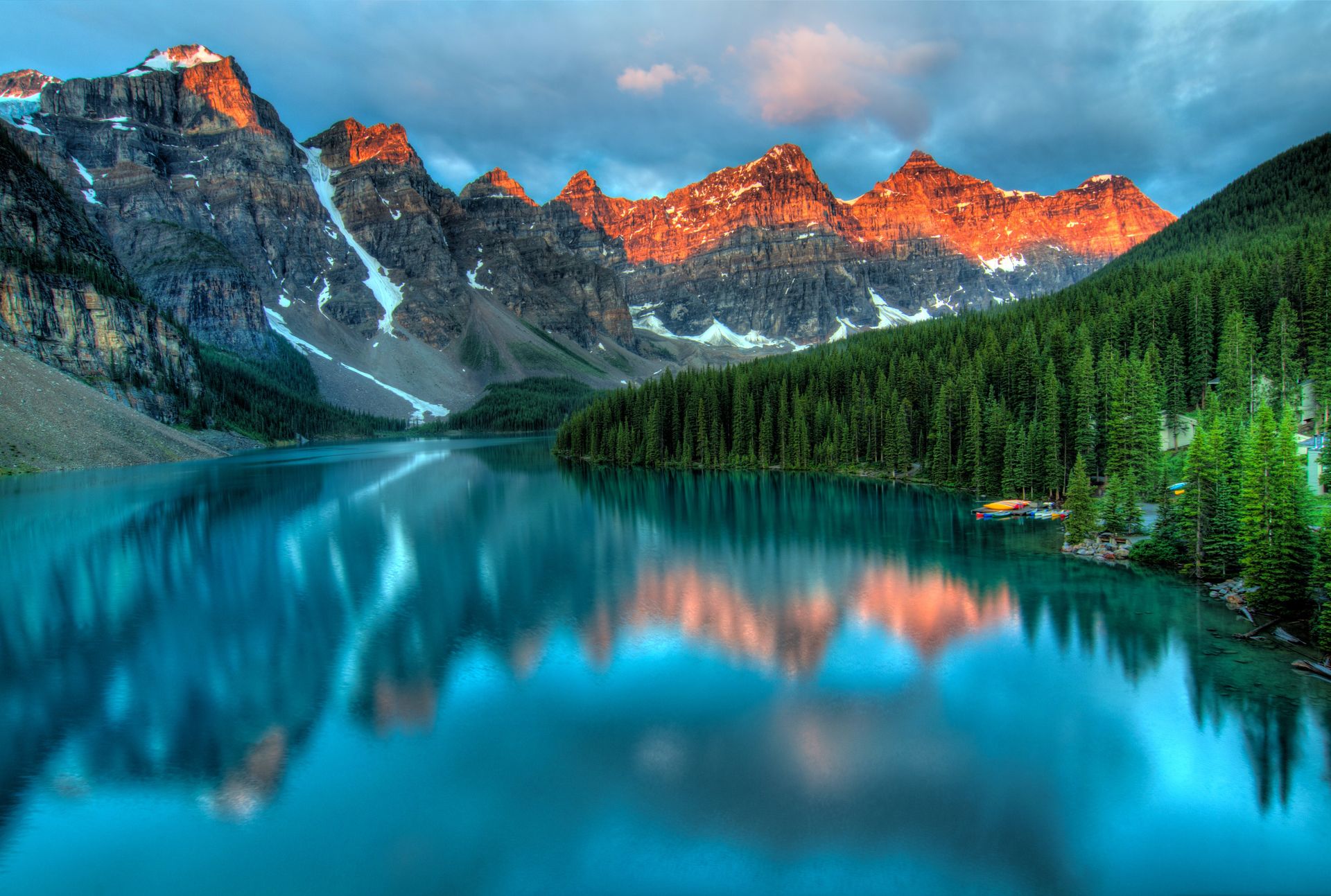
Vertical landscape to 16:9 desktop wallpaper
Turn a vertical lake photo into a 16:9 desktop background without losing the pines or squishing the mountain peaks.
No account required
Open a tight photo into a wider frame without cropping or losing pixels. Drop it in, pick 1:1, 4:5, 16:9, or drag the canvas, and let AI continue lighting and background textures while keeping your original subject locked.
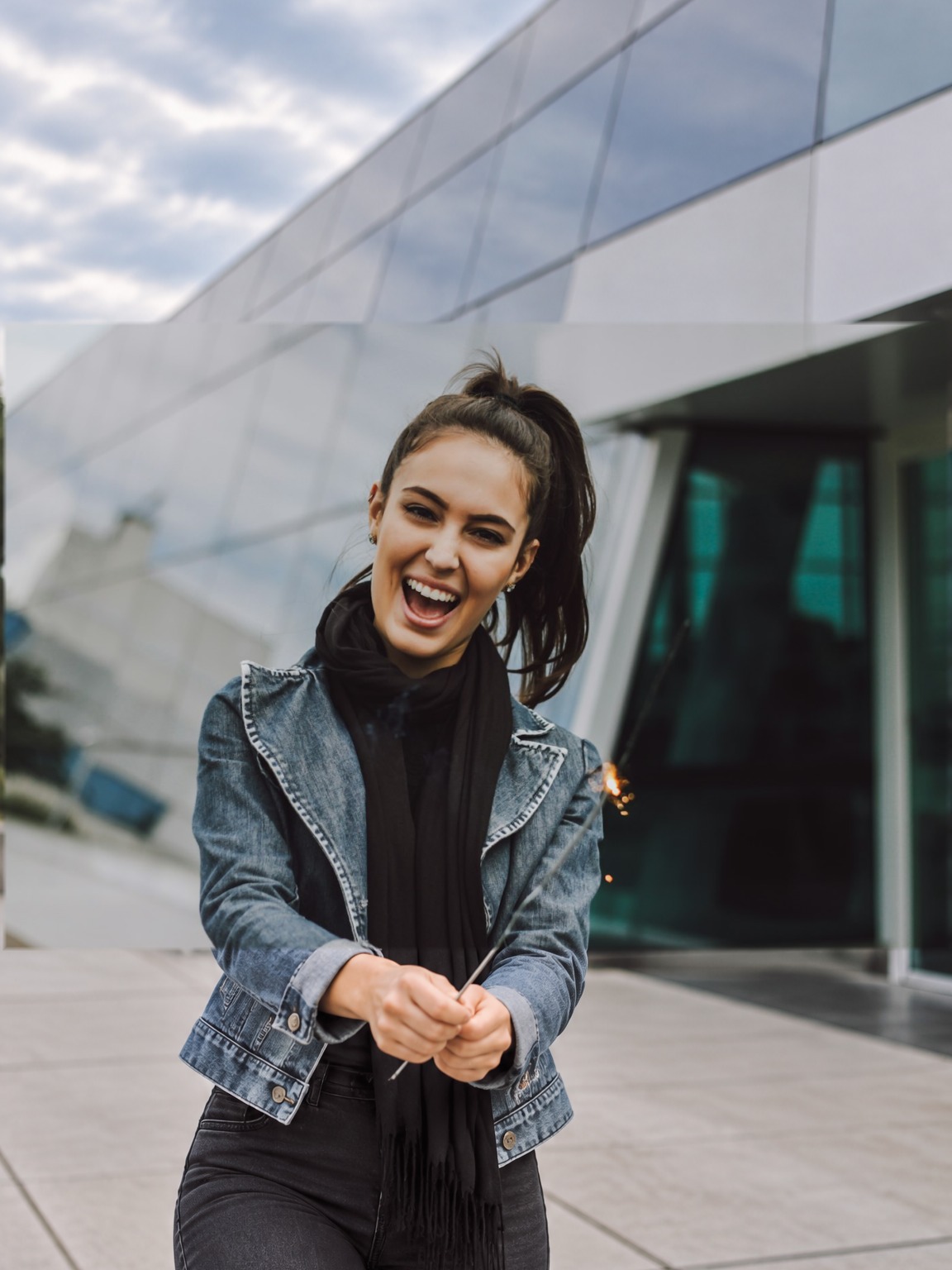
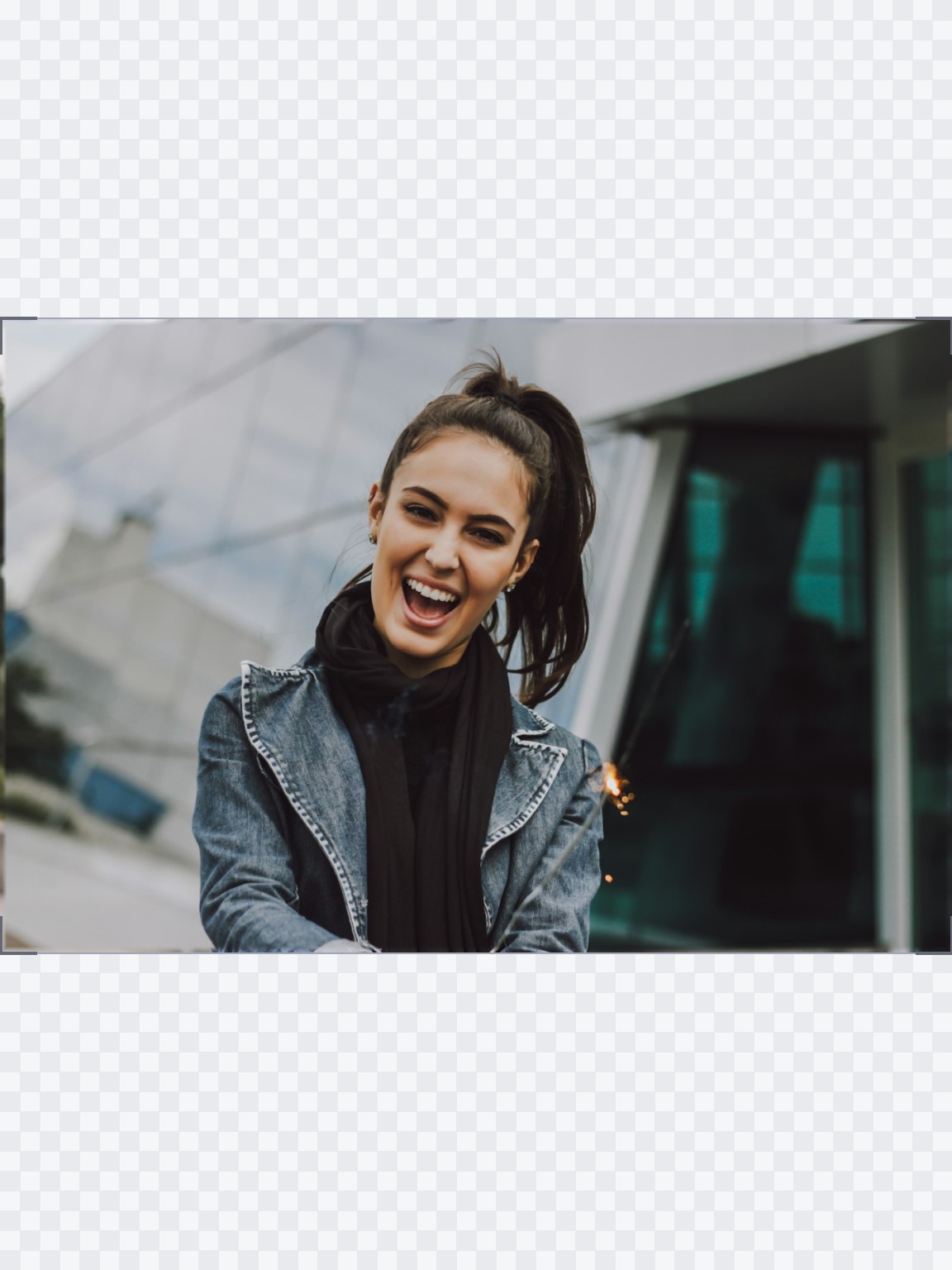
Forcing a 4:5 phone shot into 16:9 distorts faces and shapes; cropping cuts away your subject; adding black bars looks dated. Lumenfix uncrops the image cleanly, preserving your original center and continuing natural lighting and textures.
01
Every pixel you upload stays exactly where it was. New sky, snow, floor, or environment only appears in the newly expanded border—no face-swapping, no subject hallucinations.
02
The model reads edge details—snow grain, wood grains, sunset angles—and continues them naturally instead of pasting a generic backdrop.
03
One-click presets for 1:1 avatars, 4:5 vertical feeds, 16:9 desktops, and 9:16 mobile stories, plus freeform drag handles for custom layouts.
04
Add a brief prompt like “clear winter sky” or “wooden deck” to guide complex borders. Leave it blank for automatic scene continuation.
See how landscape, portrait, ecommerce, and architecture photos look when extended cleanly into wider frames.
Turn a vertical lake photo into a 16:9 desktop background without losing the pines or squishing the mountain peaks.
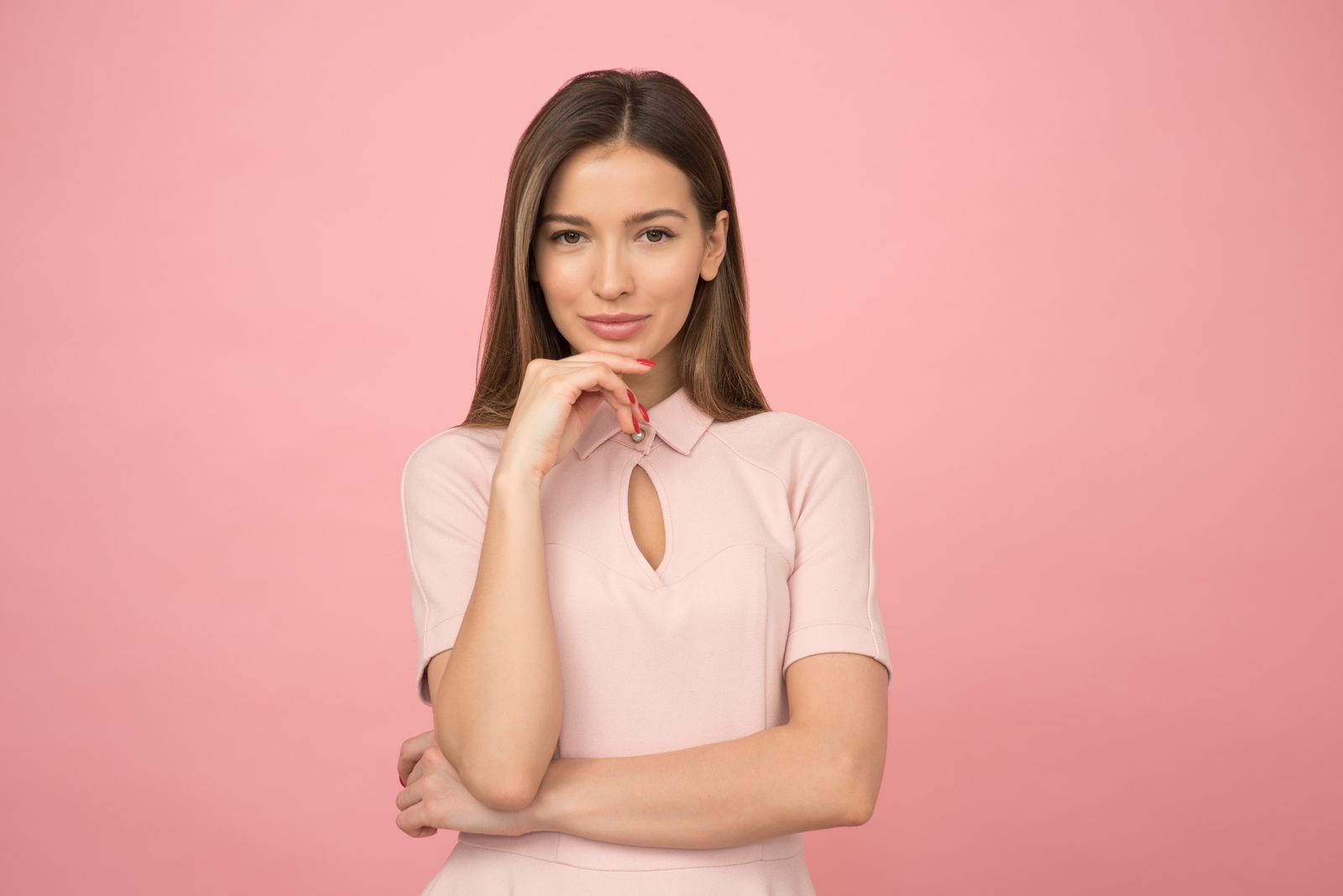
Leave the face and hair completely untouched while expanding the background for 1:1 profile pictures or 4:5 feed posts.
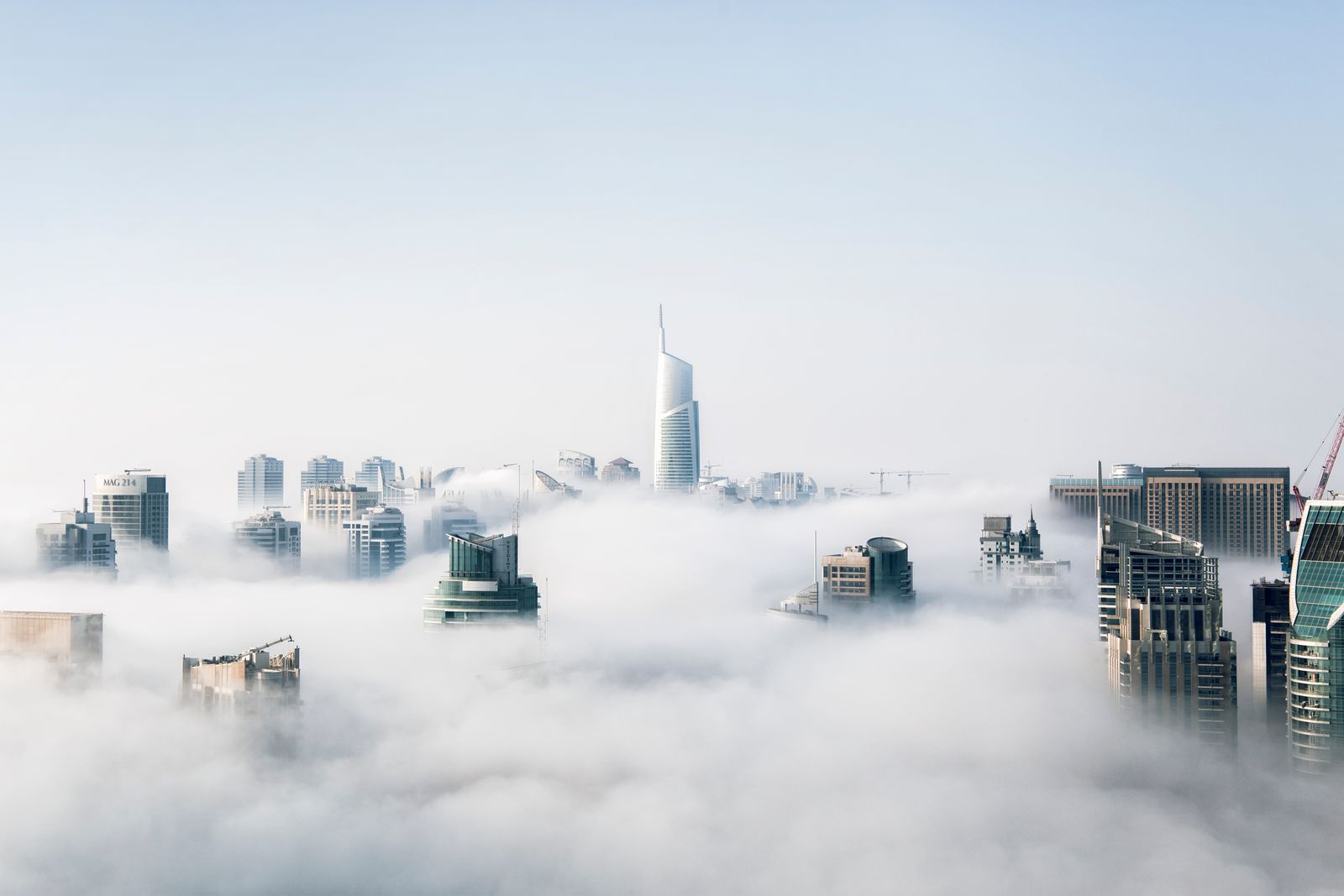
Push the bottle or box inward to create clean margins for product titles, value props, and pricing badges.

Open up a tight living room photo into an expansive header banner while preserving realistic perspective and furniture geometry.

Expand borders around artwork for wallpaper or double-page spreads while matching the original linework and brush texture.
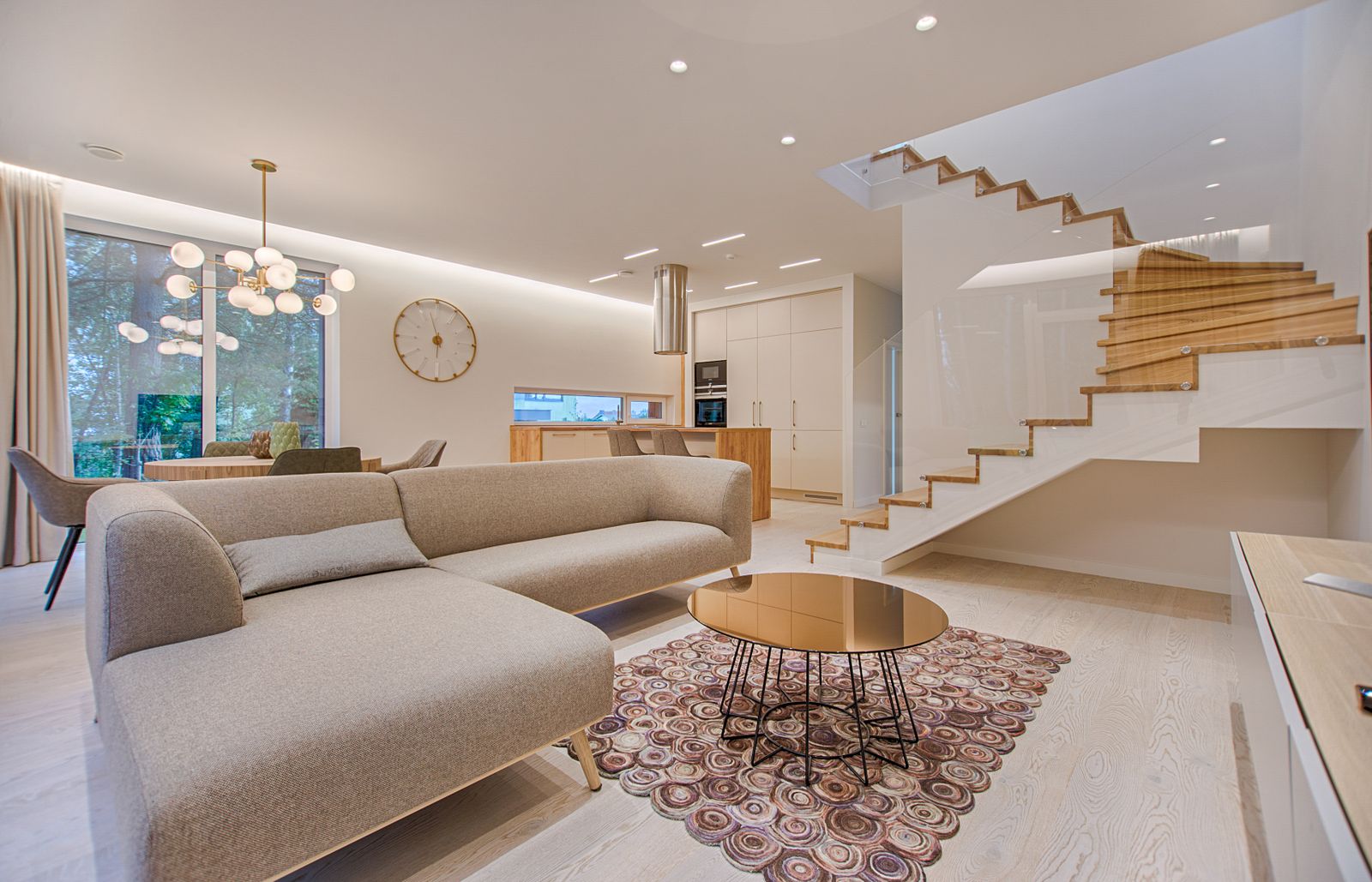
Transform street or beach snapshots into wide cinematic scenes where the horizon and skies continue smoothly.
Three quick steps. Your original photo is always the pristine center of the new canvas.
Step 1
Drop in a JPEG, PNG, or WebP up to 20 MB, or paste directly from your clipboard.
Step 2
Choose 1:1, 4:5, 16:9, 9:16, or drag the frame handles. Only the empty outer canvas will be generated.
Step 3
Inspect the seamless edge blending against the original photo, then download in full quality.
A focused darkroom canvas designed to extend existing photos, not a random text-to-image generator.
Popular aspect ratios in one click, plus pixel-precise custom dimensions for custom print or web specifications.
Describe specific peripheral elements or leave it blank when the natural sky, terrain, or room background is already clear.
The source rectangle is never repainted. If anything inside the original frame looks altered, that is a bug, not a feature.
Enhance face details first if your source is soft, or upscale the completed image to 4K / 8K for high-resolution print.
Pick the ideal ratio for your target platform to prevent auto-cropping, compression, or distortion.
Balanced geometric symmetry that keeps visual attention tightly centered on the subject.
Best for: Instagram feed tiles, profile avatars on social networks, and standard square ecommerce product listings.
The optimal mobile feed format, offering 25% more screen real estate than square without being cropped.
Best for: Instagram portrait posts, Xiaohongshu cover cards, Pinterest pins, and mobile in-feed ads.
The universal standard for widescreen displays, presentations, and landscape video platforms.
Best for: Desktop 4K wallpapers, YouTube thumbnails, keynote slides, and responsive website hero banners.
Designed for immersive, full-height smartphone consumption without letterboxing.
Best for: TikTok & Instagram Reels video covers, Snapchat stories, and phone lock screen wallpapers.
Unlimited ratio flexibility by dragging handles or entering precise pixel dimensions.
Best for: Print trade-show banners, roll-up displays, magazine spreads, and custom ad units.
Good source files and intentional canvas framing make outpainted borders look authentic.
Avoid screenshotting or repeatedly forwarded images. Sharp edge pixels give the model better cues for textures.
When expanding a thin vertical strip into an ultra-wide panoramic header, moderate expansions produce the most consistent logic.
Natural landscapes and skies work best with no prompt. Add brief hints only for unique flooring, architectural styles, or decor.
Review cast shadows and vanishing points. If clipped limbs or cut-off furniture sit on the edge, erase them first.
Combine complementary tools for clean compositions, crisp faces, and ultra-high resolution outputs.
If an edge cuts through a stray arm or distracting pole, erase it first with Object Remover so the outpainted scene remains clean.
If your original is soft or low-resolution, restore facial details with Photo Enhancer before expanding the canvas.
Extending adds canvas borders, not pixel density. Send your completed wide image to Image Upscaler for tack-sharp print resolution.
Clear boundaries help you pick the right tool for each editing task.
If you want higher resolution within the exact same frame, use Image Upscaler. Extender only grows the canvas outwards.
A real photo is required. The new edges are a logical continuation of reality, not a random text-to-image creation.
The person, product, or building remains locked on its original coordinates; only the peripheral canvas is painted.
If an object was outside the original camera frame, the model cannot magically reconstruct proprietary logos or real people.
Built for anyone who has a great photo and needs a wider or different crop without sacrificing the original composition.
Convert vertical camera stills into 16:9 video covers or 1:1 post tiles without chopping off heads or hands.
Fit client photos into expansive hero banners, pitch deck slides, and advertising displays that need extra breathing room.
Add clean studio margin around product photos to comfortably accommodate badges, headlines, and pricing.
Turn vertical travel captures into expansive desktop wallpapers without awkward black letterboxing or stretched pixels.
The new edges are in. If you also want it sharper or larger, these tools continue from the same file:
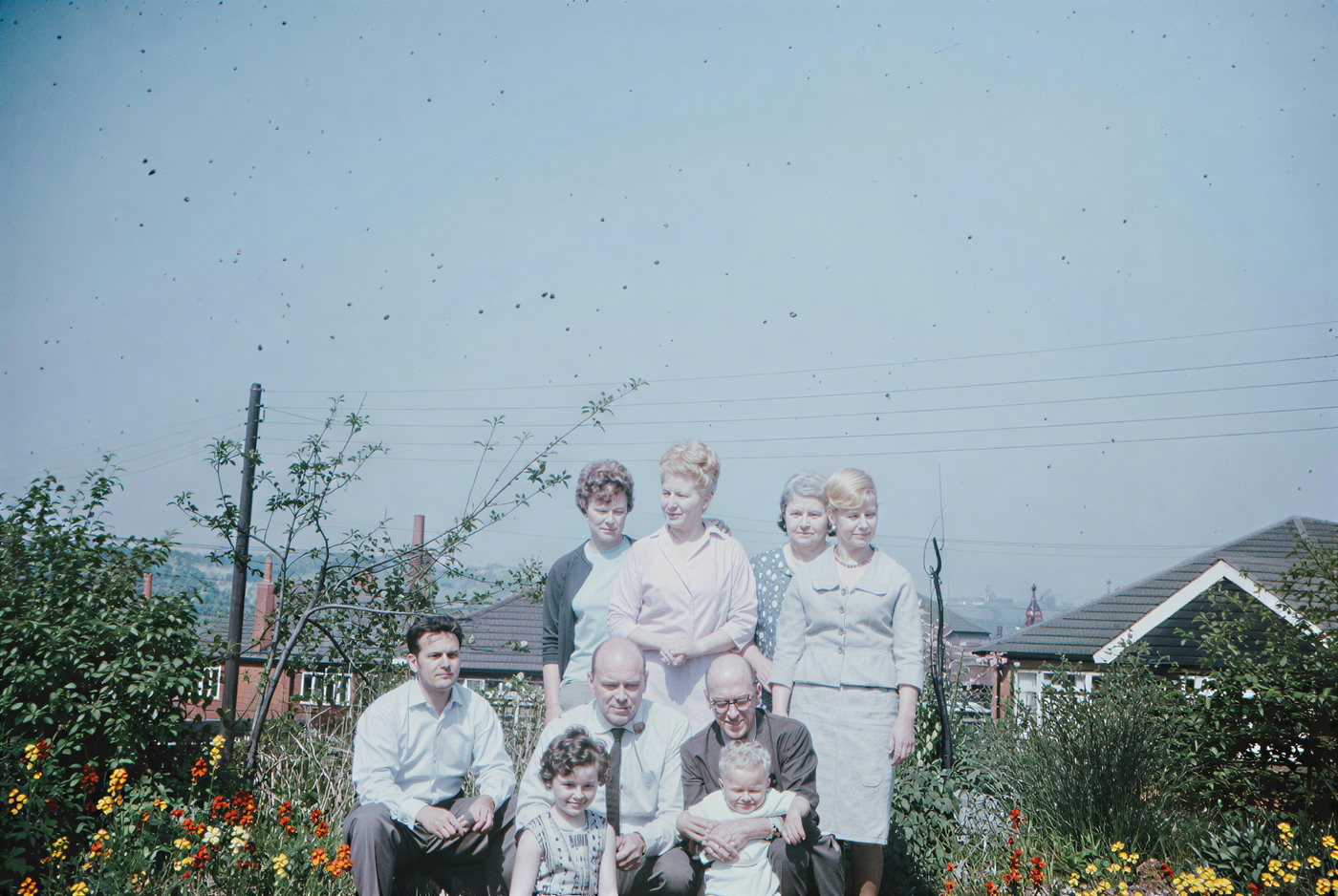
Restore crisp facial textures with Photo Enhancer, then expand your frame.
Try with this photo

Upscale the extended photo for large-format printing without redrawing content.
Try with this photoEnhance
6General AI image enhancement. Standard 2×, Pro for finer detail and color.
Credits · Pro
Fix motion blur and soft focus in photos and portraits.
Credits · Pro
Sharpen blurry text and screenshots cleanly.
Credits · Pro
Take glare off glasses, camera flash, and sun.
4 credits
Repair scratches, creases, and tears on an old print.
4 credits
Add natural, lifelike color to black-and-white photos.
Credits · Pro
Restyle
6Put the people in your photo into a Christmas scene.
4 credits
Turn a photo into an oil painting or watercolor.
4 credits
Turn a photo into a pencil drawing.
4 credits
Turn a photo into a page to print and color.
4 credits
Turn a photo into a cartoon.
4 credits
Make a color photo black and white in your browser.
Free · Local
Upscale & extend
2Erase
2Free convert
10Convert WebP images to lossless PNG.
Free
Convert JFIF files to standard JPG format.
Free
Convert AVIF images to standard JPG format.
Free
Optimize PNG images into lightweight WebP.
Free
Convert JPG photos to lightweight WebP.
Free
Convert JPEG stills to WebP for the web.
Free
Convert WebP images to standard JPG.
Free
Convert WebP images to JPEG files.
Free
Convert PNG stills to smaller JPG photos.
Free
Convert JPG photos to PNG for editing.
Free